
Your Android phone can work as a Bluetooth pen mouse for signing. The Remote Signature Pad app lets the phone act as a Bluetooth mouse, so you can draw your signature with your finger and the strokes move the cursor on your computer. It works over Bluetooth, even without the computer app.
What you need
- An Android phone with the Remote Signature Pad app. Bluetooth is available on Android only, and the phone must support Bluetooth HID.
- A computer with Bluetooth, for example a Windows laptop.
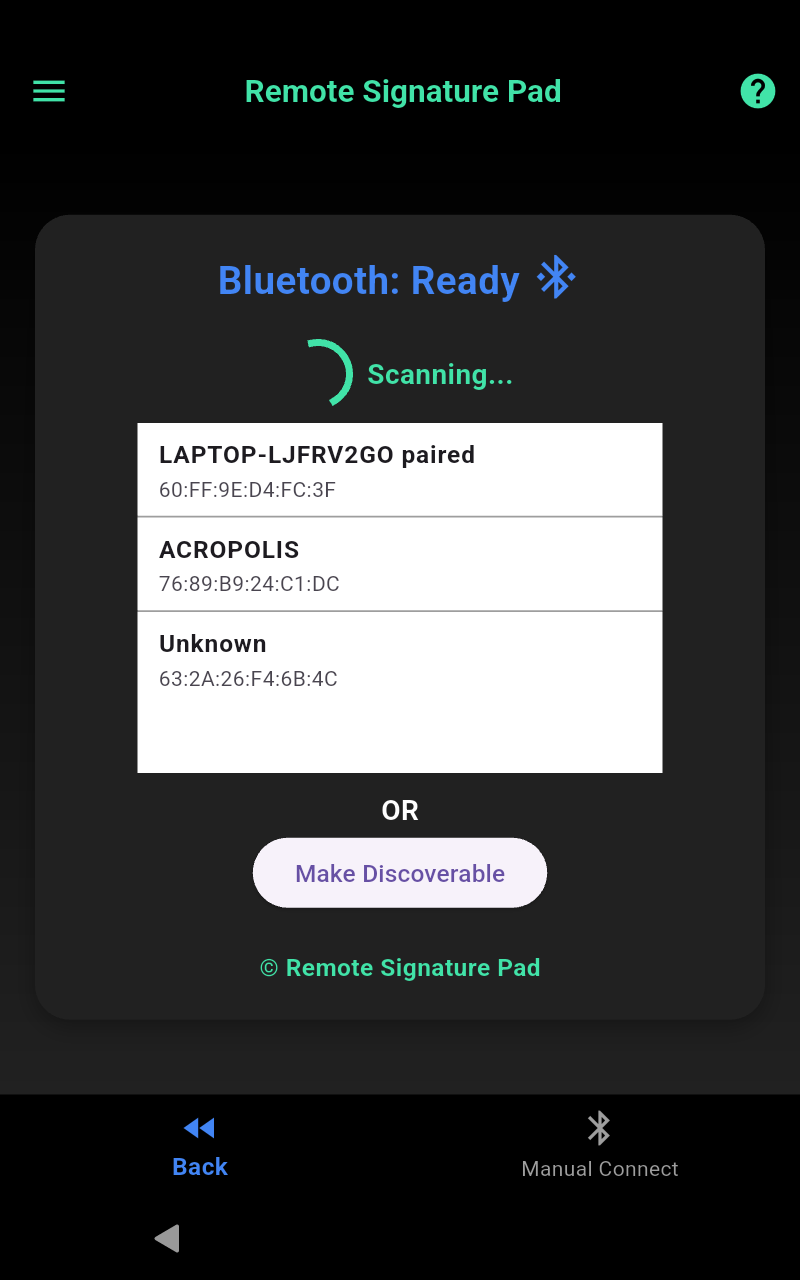
How to use your phone as a Bluetooth pen mouse
- Open the app and tap Bluetooth on the welcome screen.
- On first use you will see Scan New Devices. Accept the Bluetooth permissions the app asks for.
- When the status shows Bluetooth: Ready, tap the Bluetooth button and pick your computer from the list to pair.
- You can also tap Make Discoverable and start the pairing from your computer instead.
- Once paired, sign on your phone.
The Bluetooth Connection guide shows every screen.
Do I still need the computer app?
For a plain Bluetooth pen mouse, no. If you also install the free computer app from the Downloads page, you can use its signature area tools, such as Manual Sign or a saved signature window, to keep the signature inside the box. See the computer app actions.
When Bluetooth is not the right choice
If you want a connection that finds your computer automatically, use Wi-Fi with the Forward Connection. If you have no Wi-Fi, try a USB cable. iPhone users connect by Wi-Fi.
Pairing the first time
The first time you connect to a computer, both devices need to agree to pair, so you will see pairing prompts on the phone and on the computer. The Bluetooth guide shows the pairing screens in order, so follow it once and later connections are quicker.
Switching to a different Bluetooth device
When the computer app is running, it registers the Bluetooth device as the signature pad and ignores other Bluetooth mice, even if they are connected. To change devices, right-click the tray icon, open Actions and choose Re-register Bluetooth Pad, then pick the new device from the list.
Troubleshooting
- Your phone must support Bluetooth HID. If the app cannot start Bluetooth, check this first.
- Accept every Bluetooth permission the app asks for.
- If the computer is not in the list, tap Make Discoverable and start the pairing from the computer.
- If Bluetooth gives you trouble, you can still use a USB cable or Wi-Fi instead.
New to Remote Signature Pad? Read how it works or try the free Lite version from the Get Now page.
Leave a Reply