
For Android devices, you can connect over Bluetooth instead of Wi-Fi. Remote Signature Pad works with any mobile device that supports Bluetooth HID, connecting to the computer over classic Bluetooth — no computer app required.
Connecting for the first time
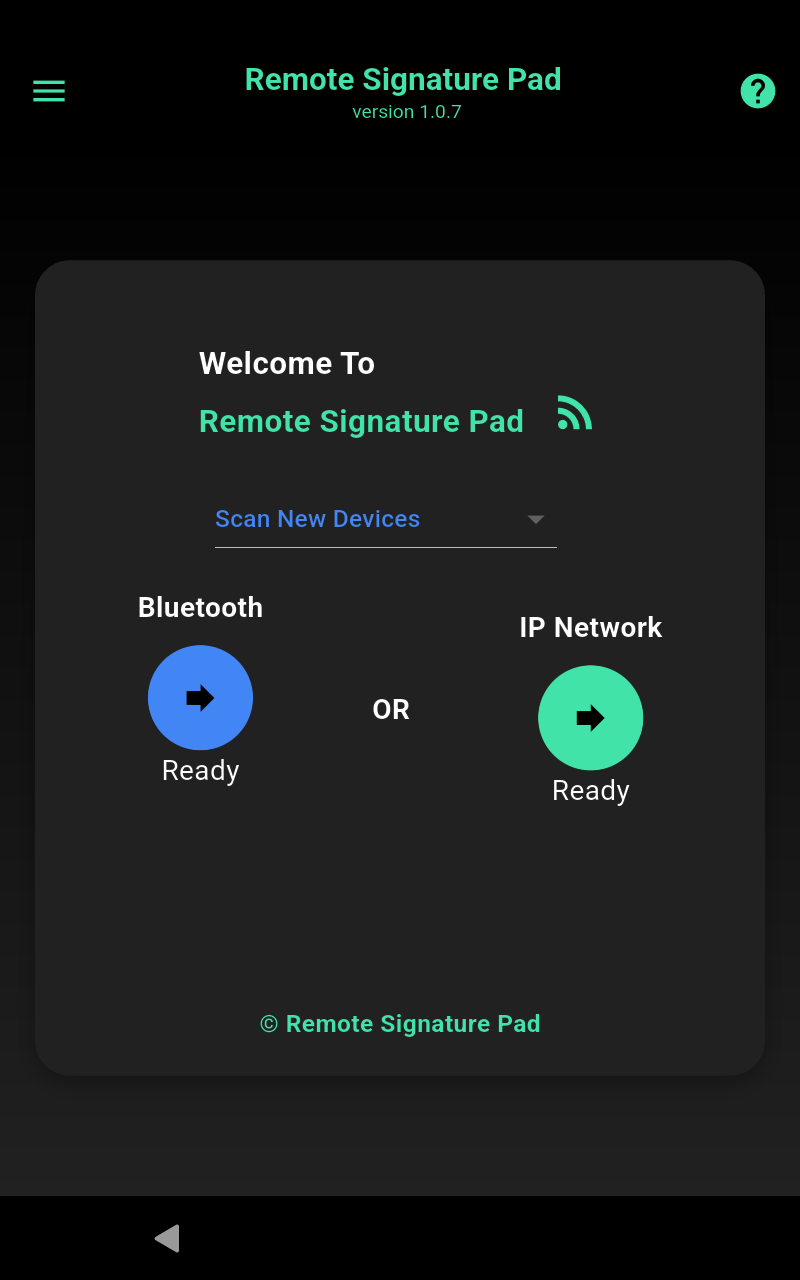
Tap Bluetooth on the welcome screen. For first-time access, you’ll see Scan New Devices in the drop-down box. The app will request Bluetooth permissions — accept all of them, and the Bluetooth status will show as ready. Once ready, tap the Bluetooth button.
Pairing with a computer for the very first time
The first time you connect to a given computer, Windows and your mobile device each need you to confirm the same pairing code — this is a standard Bluetooth pairing step from the operating system itself, not the app, and only happens once per device.
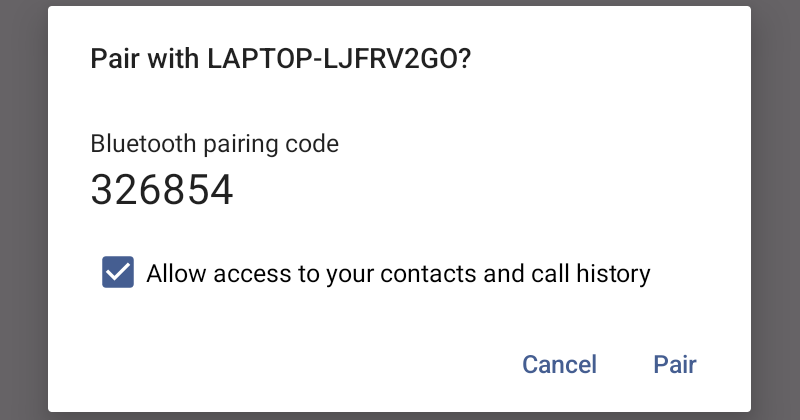
After selecting the computer in the scan list, your mobile device shows the pairing code:
At the same time, a Pair Device window pops up on the computer, asking you to confirm the same code:
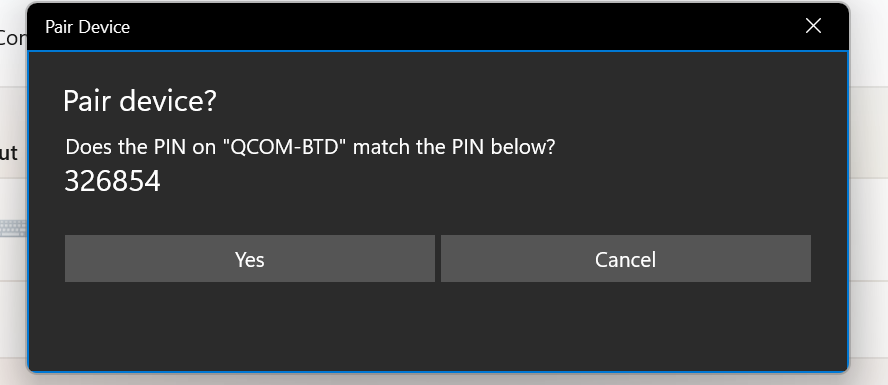
Check that the code matches on both screens, then tap Pair on the mobile device and click Yes on the computer. The computer confirms the pairing:
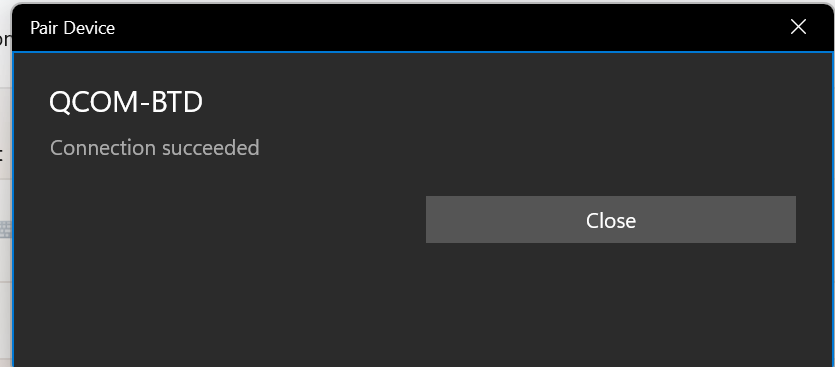
Click Close, and the two devices are paired — this step won’t be needed again for this computer.
There are two modes of Bluetooth connection:
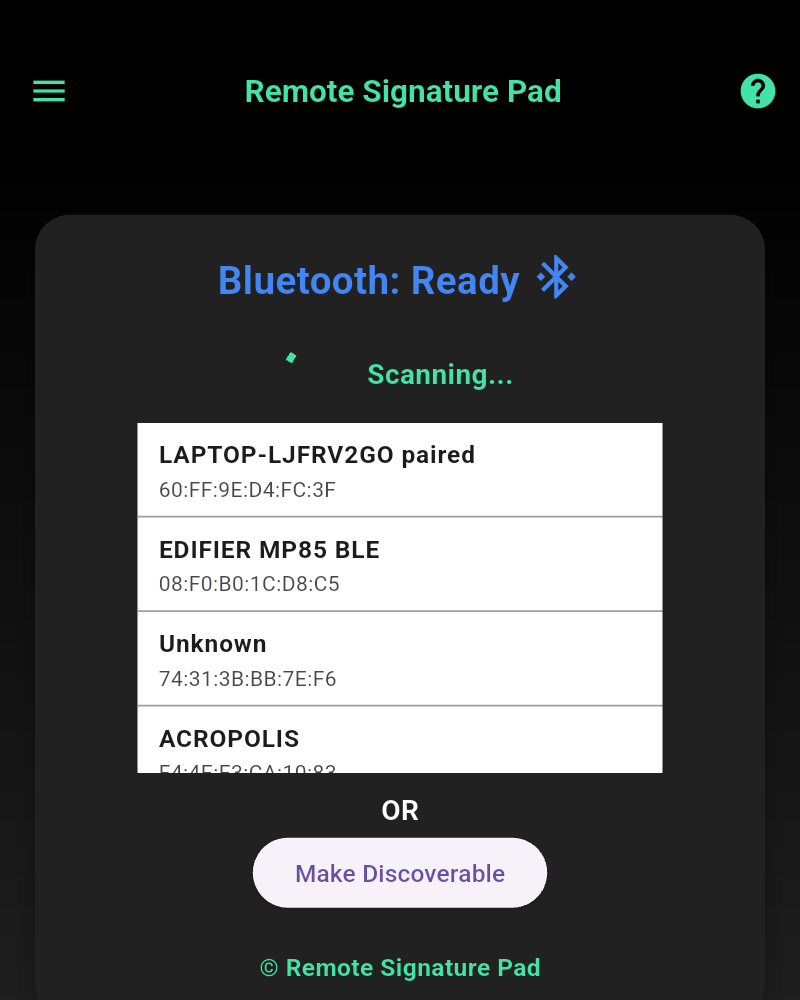
Scanning Mode
The app scans for nearby Bluetooth devices. Once your computer appears in the list, select it to connect.
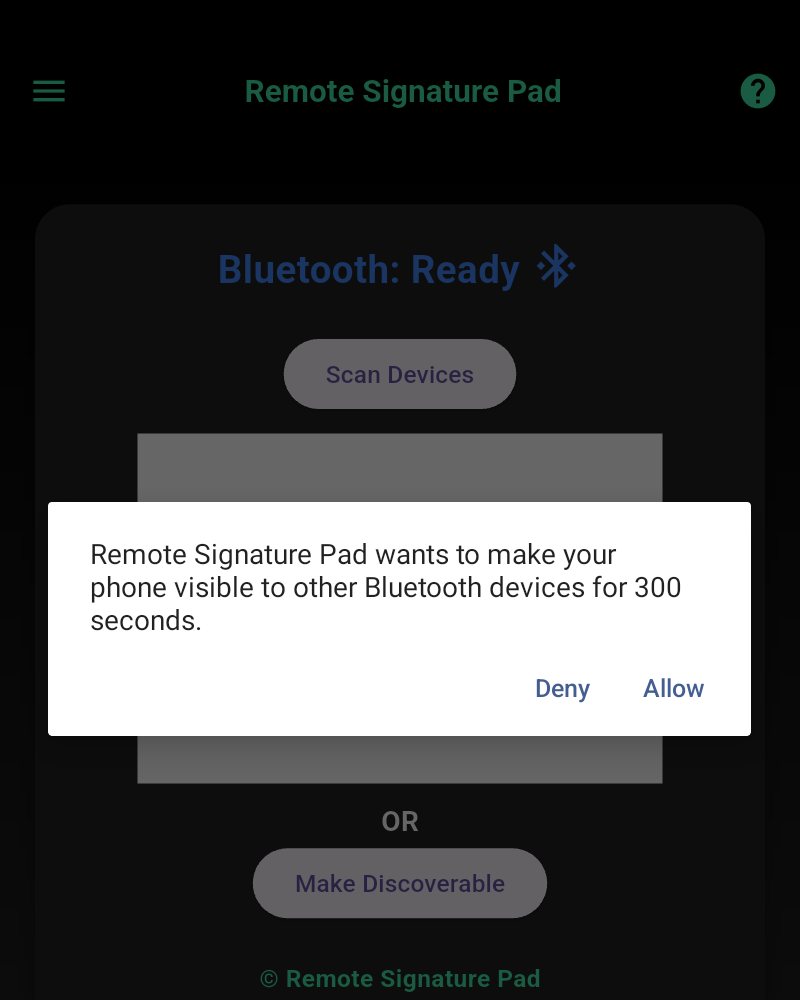
Discoverable Mode
Make your mobile device discoverable by other devices for 300 seconds, then initiate the connection from the computer side instead.
Switching to a different Bluetooth device
The first phone you sign with over Bluetooth gets registered as the signature pad, and the app locks onto it — every other Bluetooth mouse is ignored from then on, even if it’s connected. Simply pairing a different device in Windows is not enough to switch: the app will keep ignoring it until you tell it to change.
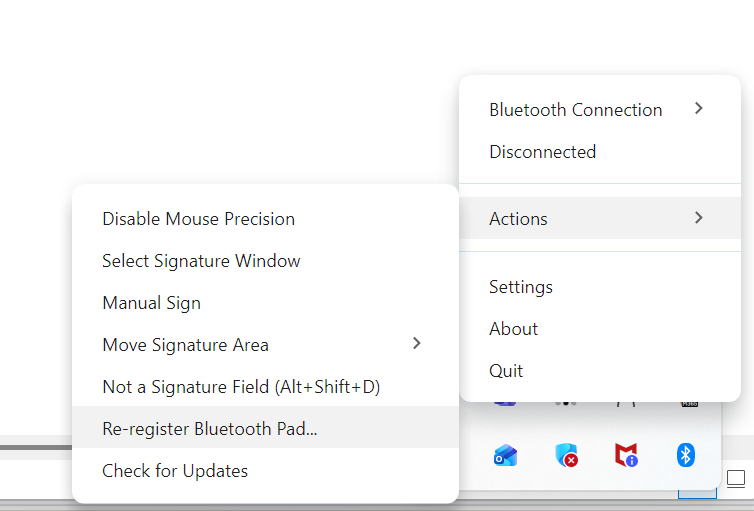
To switch devices, right-click the Remote Signature Pad tray icon, open Actions, and choose Re-register Bluetooth Pad…:
Pick the new device from the list that appears:
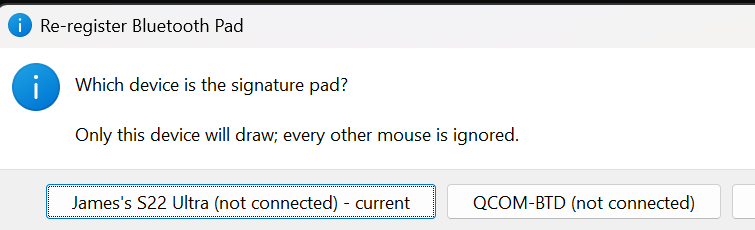
Only the device you pick here will draw from then on.