
Choose how to sign into a signature field on your computer: a box you drag yourself, a saved window, or a field the app finds for you.
Everything the Computer App does is in its tray menu. On Windows, click the Remote Signature Pad icon in the system tray (it may be under the ^ arrow). On a Mac, click the icon in the menu bar. This page explains every item in that menu and how to use it.
Connection type and Listening
The first item shows the connection type in use (for example Forward Connection). Hover over it to switch to another type: Forward, Reverse or Bluetooth. Switching stops the old connection and starts the new one. The item below it shows the status and lets you start or stop the connection, for example Listening while the Computer App waits for the phone in Forward Connection.
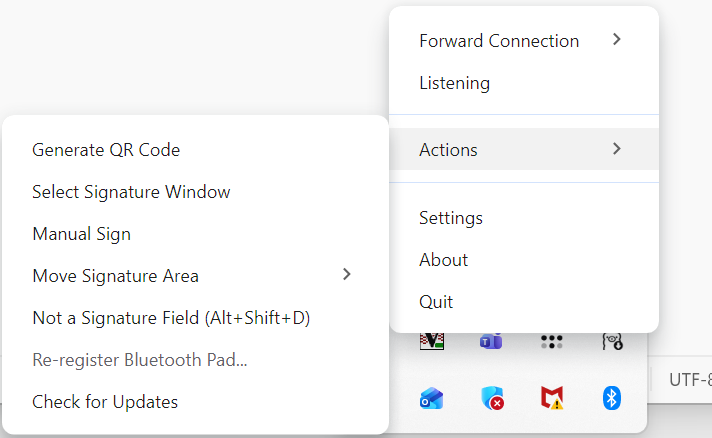
→ Generate QR Code
What it does: shows a QR code that holds this computer’s address, port and whether SSL is used, so the phone can connect without typing anything.
How to use: click Generate QR Code, then on the phone open the Mobile App, choose to scan a QR code and point the camera at the screen. Use it when Auto Connect cannot find the computer. This item is for Forward Connection. In Reverse Connection the same place shows Manual Connect, where you type the phone’s address. In Bluetooth it shows Enable/Disable Mouse Precision, which turns the Windows “Enhance pointer precision” setting on or off so the pen stroke follows the finger more exactly. The item is greyed out while a phone is connected.
→ Select Signature Window
What it does: saves where the signature goes in a program you sign in regularly, such as a PDF reader or your business software. Every time that window is in front again, the signature area is ready on its own and the cursor is held inside it (this is the Auto Window Tracker).
- Open the document you sign, so the signature box is visible.
- Click Select Signature Window, then click on that window.
- Drag a rectangle over the area where the signature belongs and release the mouse.
The rectangle is saved as a proportion of the window, so it follows the window when it is moved or resized. Saved windows are listed in Settings → Saved Signature Windows, where you can delete them. Press Enter or Esc to cancel while selecting.
→ Manual Sign
What it does: lets you sign in any area of the screen right now, without saving anything. Use it for a one-off document or when no tracker found the right place.
How to use: click Manual Sign, drag a rectangle over the signature box, and sign on the phone. The cursor stays inside the rectangle while you sign. Manual Sign always has the highest priority: it overrides every automatic tracker until it ends. It ends when you press Alt+Shift+Esc, or by itself after the time set in Release Cursor After Signing in General Settings.
→ Move Signature Area
What it does: on a form with several signature boxes found by the Intelligent Signature Field Tracker, moves the signature area to the box next to the current one.
How to use: press Alt+Shift+Left, Right, Up or Down (or choose the direction from this menu). It moves to the box in that direction, on the same row for left and right and in the same column for up and down. The outline shows which box you are on, for example “Field 2 of 9”. Use the keyboard shortcut while signing, because the cursor is held inside the box and cannot reach the tray menu.
→ Not a Signature Field (Alt+Shift+D)
What it does: tells the Intelligent Signature Field Tracker that the area it picked is not a signature field. That area is remembered for that program and never offered again, and the next best area is offered instead.
How to use: while the wrong area is highlighted, press Alt+Shift+D. Or press Alt+Shift+Esc first to free the cursor, then choose this item from the tray menu. To undo it, remove the entry under Settings → General Settings → Rejected Signature Areas.
→ Re-register Bluetooth Pad
What it does: chooses which Bluetooth device is your signature pad (the phone), so only that device draws signatures and your normal mouse is left alone.
How to use: pair the phone with the computer first, then click this item and pick the phone from the list of connected Bluetooth devices. Use it when you change phones or the pad is not recognised. It is only available in Bluetooth connection and is greyed out otherwise.
→ Check for Updates
Checks whether a newer version of the Computer App is available and offers to install it. You can also download the latest version from the Downloads page.
Browser extension: to sign directly into signature boxes on web pages, install the free Draw To Sign extension in Chrome or Edge. Keep Enable HTTP server (Server Configurations) and Browser Extension (General Settings) ticked. Install guide.
Settings, About and Quit
- Settings opens the settings window: Saved Signature Windows, Server Configurations and General Settings.
- About shows the version you are running. Please include it when you contact support.
- Quit closes the Computer App completely. Closing the settings window does not quit it; it keeps running in the tray.
Keyboard shortcuts
- Alt+Shift+Esc: free the cursor (end containment) at any time.
- Alt+Shift+Arrow keys: move to the signature box in that direction.
- Alt+Shift+D: mark the highlighted area as not a signature field.
- Enter or Esc: cancel while selecting a rectangle.