
No network, a weak network, or a network that blocks devices? You can still use a signature pad without WiFi if you have an Android phone. Remote Signature Pad offers two options that do not need a wireless network: Bluetooth and a USB cable.
Option 1: Bluetooth
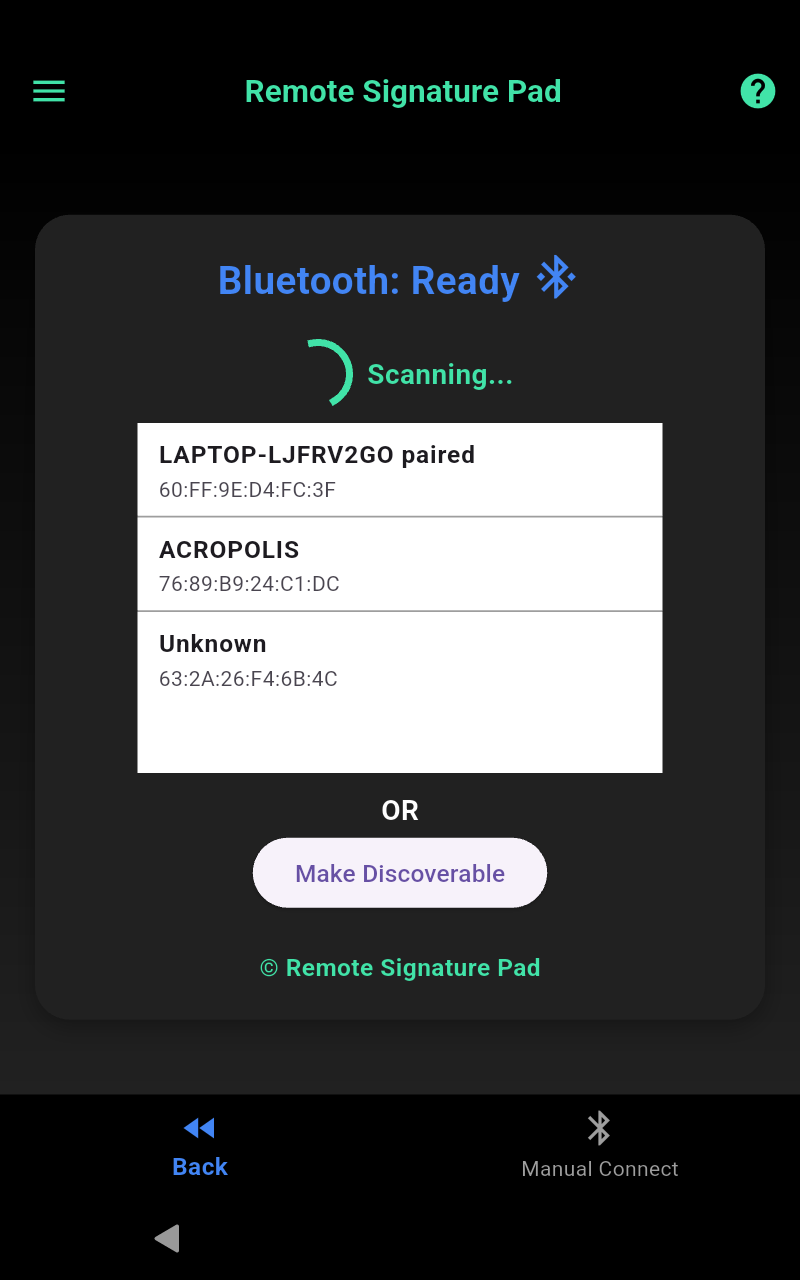
Over Bluetooth, your Android phone acts as a Bluetooth pen mouse. It works even without the computer app, as long as your phone supports Bluetooth HID. Tap Bluetooth on the welcome screen, accept the permissions, scan for your computer and pair. The Bluetooth Connection guide walks through each screen, and our post on the Bluetooth pen mouse explains what to expect.
Option 2: USB cable
With a USB cable you use USB tethering:
- Connect the Android phone to the computer with a USB cable.
- In the Remote Signature Pad app, open the menu, then General Settings, and tap Edit next to USB Configuration.
- Turn on USB tethering. A USB Tether button then appears on the IP Network screen next to Auto Connect and Manual Connect.
- Keep the computer app listening and tap USB Tether.
See the USB Connection guide for the full setup.
What about iPhone?
Bluetooth and USB are for Android only. An iPhone or iPad connects over an IP network, using Forward Connection or Reverse Connection.
Which one should you choose?
- Want the simplest setup and no computer app? Choose Bluetooth.
- Want to use the computer app features such as saved signature windows? Choose USB or Wi-Fi with the computer app running.
Which is more reliable?
Both a cable and Bluetooth avoid Wi-Fi problems such as a weak signal or a network that blocks devices. A cable is useful if you are already near the computer. Bluetooth is useful when you want the phone to move around without a cable.
Checklist for Bluetooth
- The phone must support Bluetooth HID.
- Accept all Bluetooth permissions in the app.
- Use Make Discoverable if the computer does not show up when scanning.
Checklist for USB
- Use a USB cable that carries data, not only power.
- Turn on USB tethering for the phone.
- Keep the computer app running and listening.
If you do have Wi-Fi after all
Then Forward Connection with Auto Connect is the easiest. Read about forward vs reverse connection and our checklist for a signature pad not connecting.
You can download the free computer app from the Downloads page and the mobile app from the Get Now page. If you are not sure where to start, read how it works.
Leave a Reply