
Use your Android phone as a USB signature pad by connecting it to the computer with a USB cable.
USB Connection lets you link your Android device to the computer with a physical cable instead of Wi-Fi or Bluetooth — handy when a wireless network isn’t available or reliable. It needs USB tethering turned on for the device, which the app gives you a direct shortcut to.
Step 1: Connect the cable and open USB Configuration
Connect a USB cable between the Android device and the computer. In the Remote Signature Pad app, open the ☰ menu > General Settings and tap Edit next to USB Configuration.
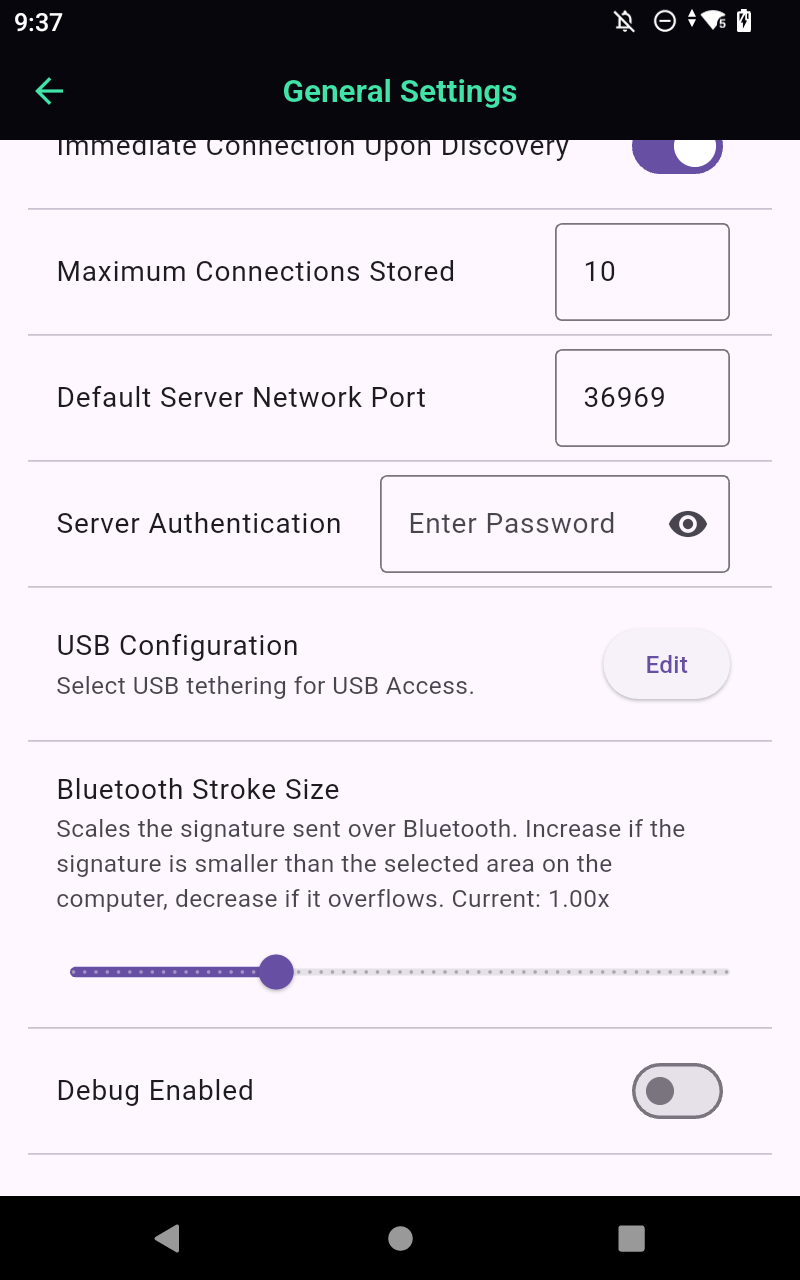
Step 2: Turn on USB tethering
Edit takes you straight to Android’s own Hotspot & tethering settings (Settings > Network & Internet > Hotspot & tethering) — this isn’t a separate screen you need to find yourself, the app opens it for you. Turn on USB tethering here:
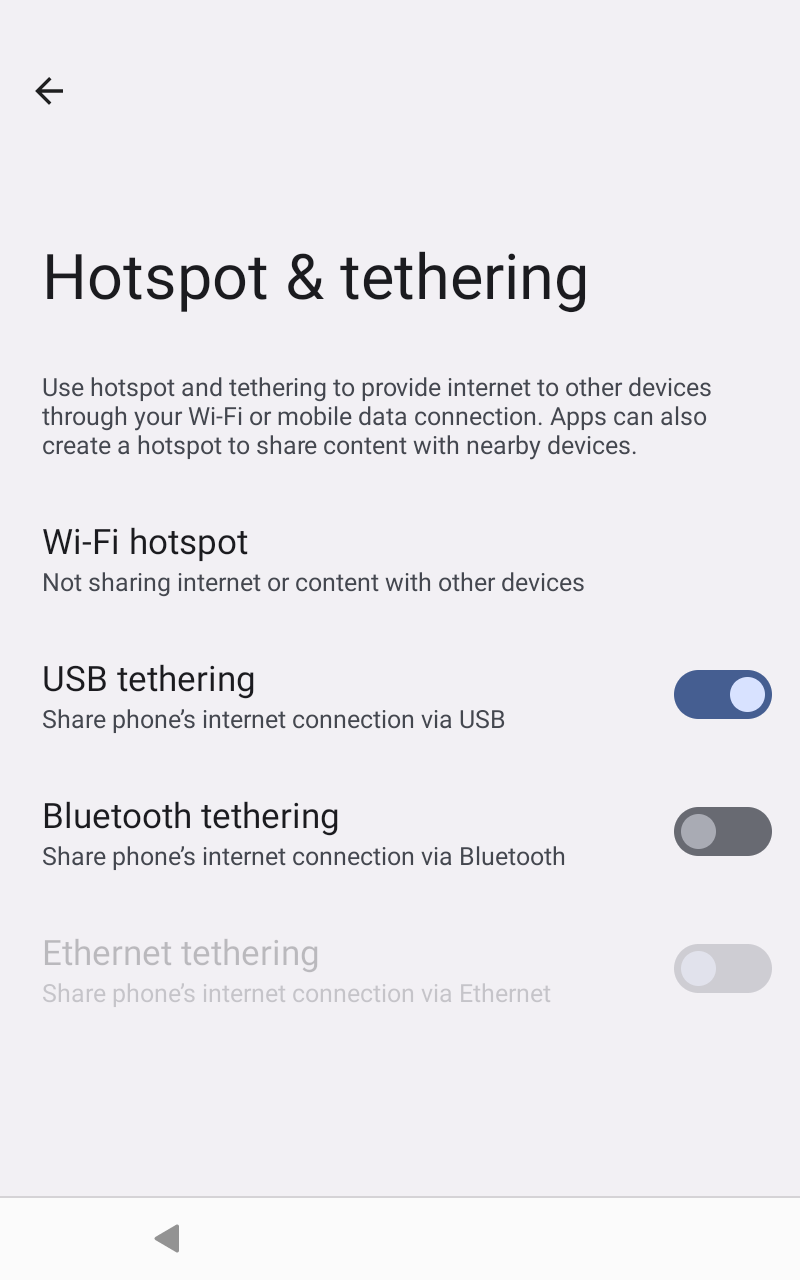
Then go back to the app.
Step 3: Connect
Return to the welcome screen and tap IP Network. With USB tethering on, a new USB Tether button now appears alongside Auto Connect and Manual Connect — tap it to connect over the cable.
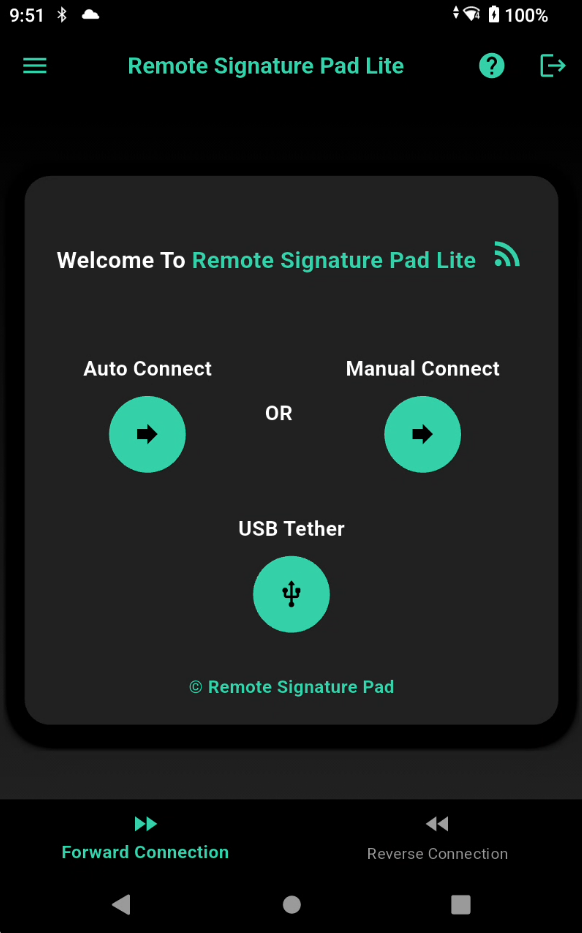
You’ll also need the Computer App running on the computer side in order to sign.