
Remote Signature Pad turns your phone into a signature pad for your computer. Here is how to set up your phone signature pad in three steps.
Step 1: Mobile app
Purchase and install Remote Signature Pad mobile app from the following stores.


Step 2: Computer app (optional for Android bluetooth)
Download the Computer app based on your computer desktop.
Guides
Step 3: Link the Mobile app with computer
Open the Remote Signature Pad app on your mobile device. From the welcome screen, choose Bluetooth or IP Network depending on how you want to connect.
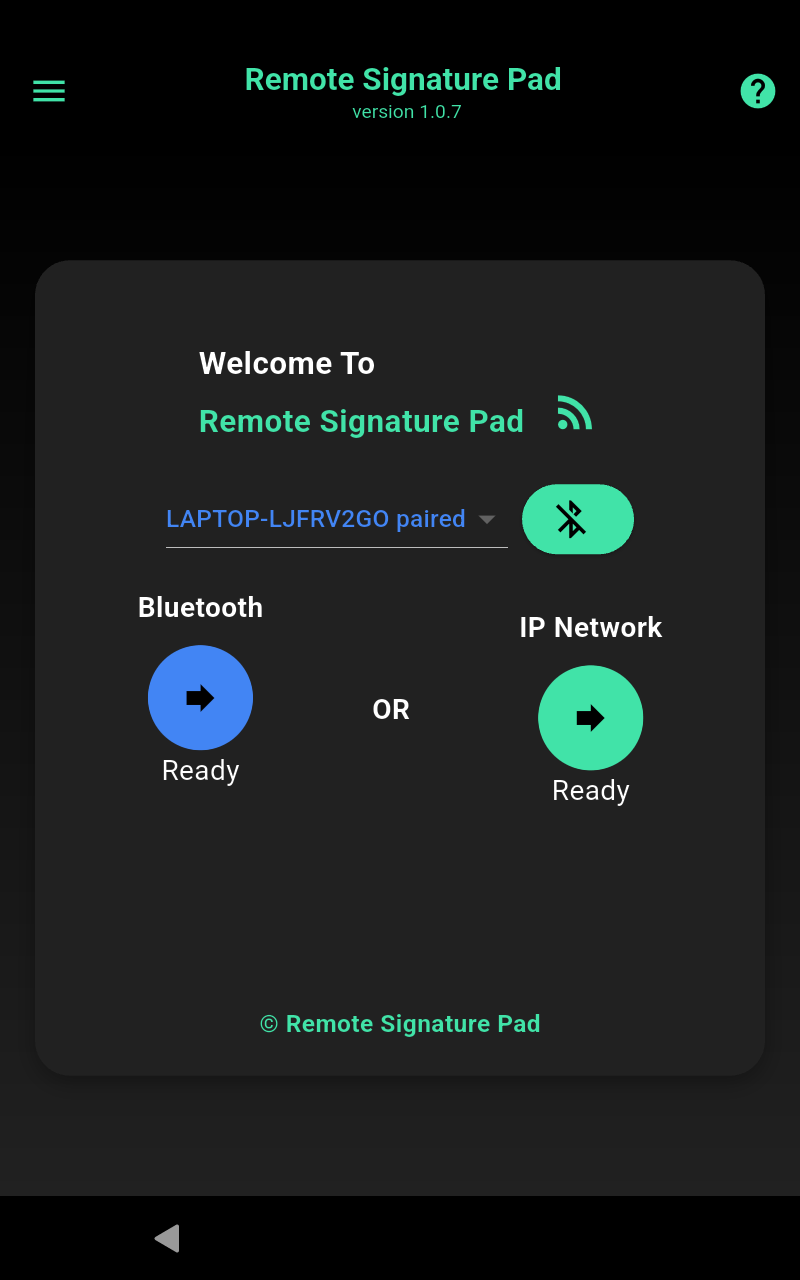
Option A: IP Network
Tap IP Network. At the bottom of the screen you can switch between Forward Connection (the mobile device connects out to the computer — the usual choice, with Auto Connect, Manual Connect, a QR-code scan, or USB Tether) and Reverse Connection (the computer connects out to the mobile device instead).
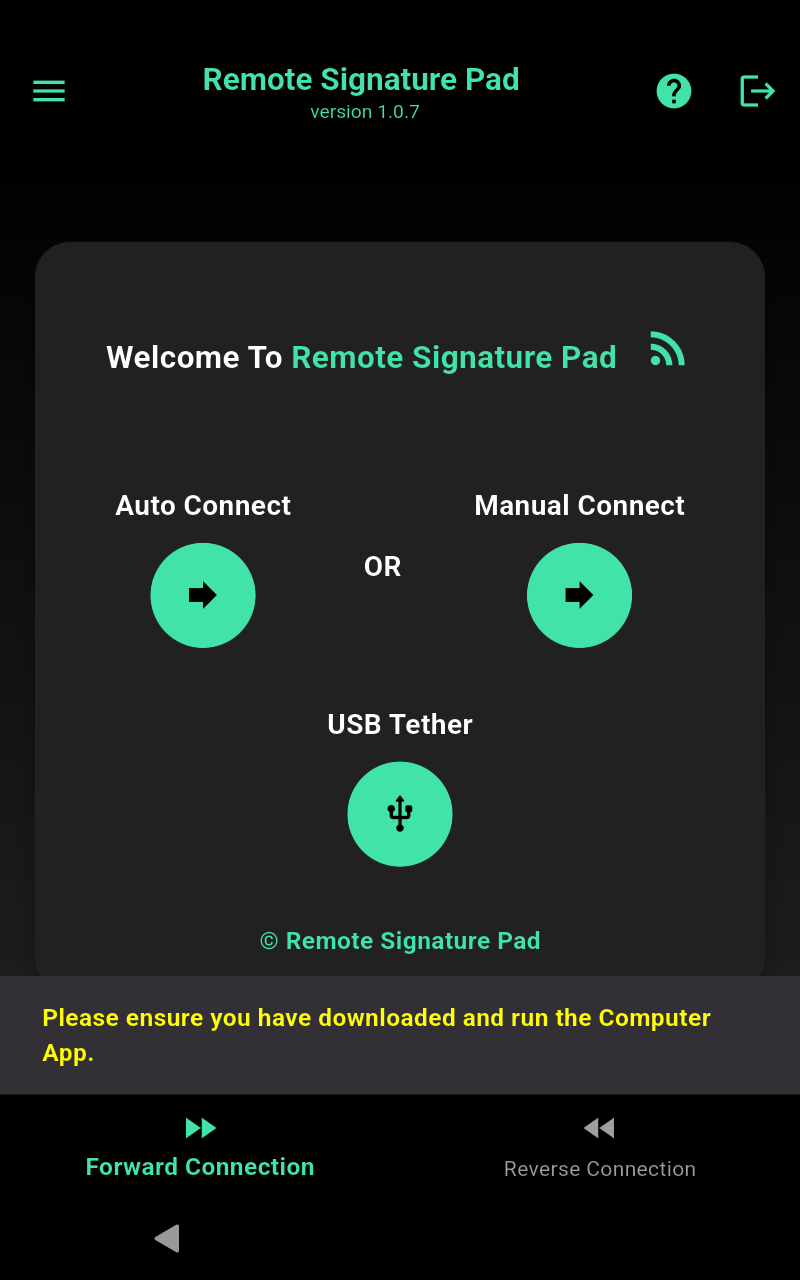
Full details: Forward Connection | Reverse Connection
Option B: Bluetooth (Android only)
Tap Bluetooth on the welcome screen, then Scan Devices to find your computer nearby. Select it from the list to pair and connect — no computer app required.
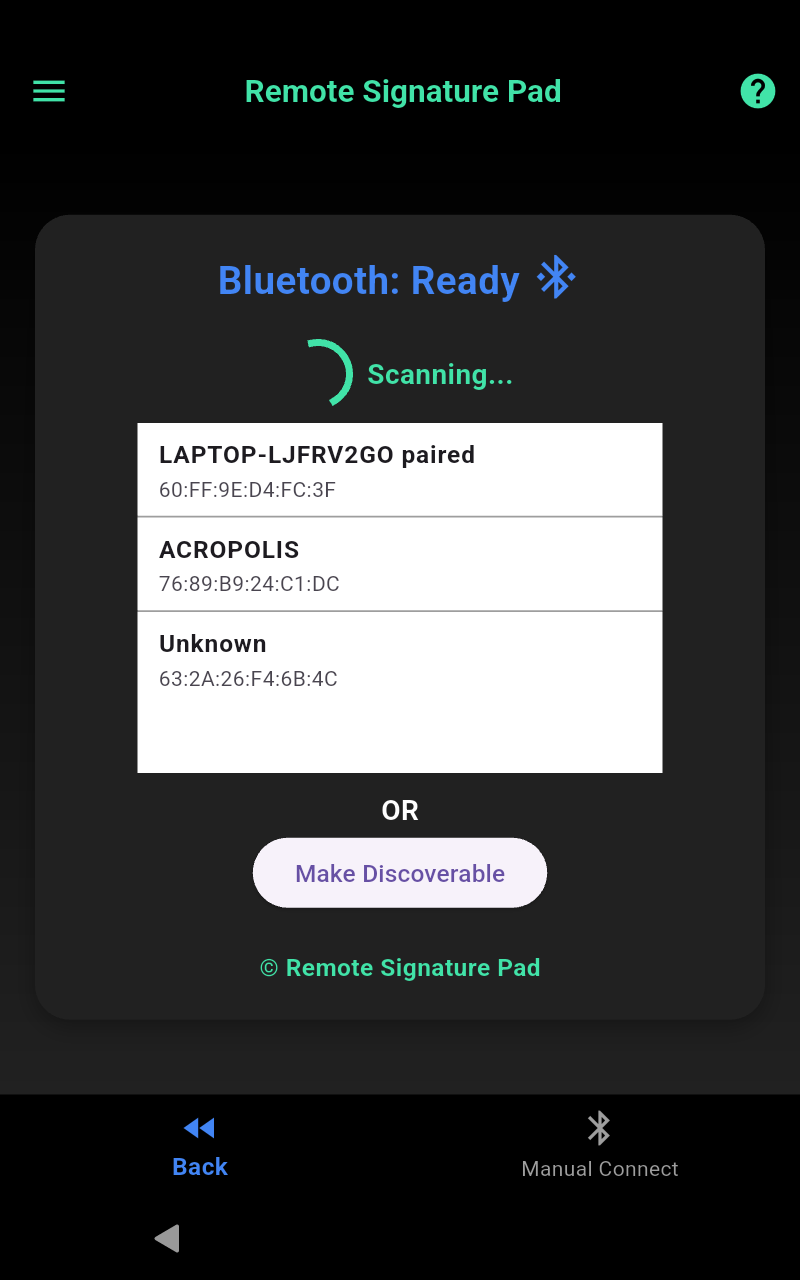
Full details: Bluetooth Connection
Option C: USB (Android only)
Connect your Android device to the computer with a USB cable and turn on USB tethering — a USB Tether button then appears on the IP Network screen alongside Auto Connect and Manual Connect.
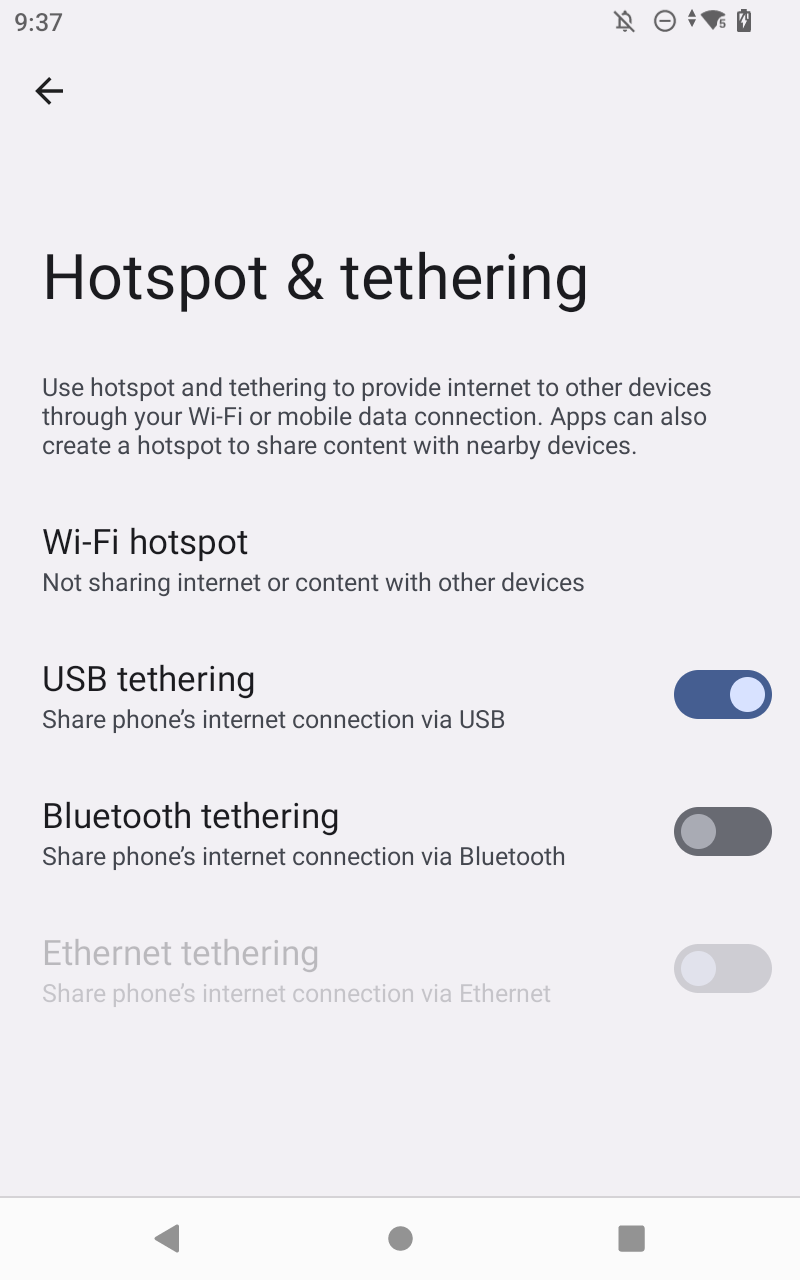
Full details: USB Connection
Step 4: Signing
Once connected, you’ll see a green status dot next to the app title and a blank signature canvas — your mobile device is now acting as a wireless signature pad for your computer.
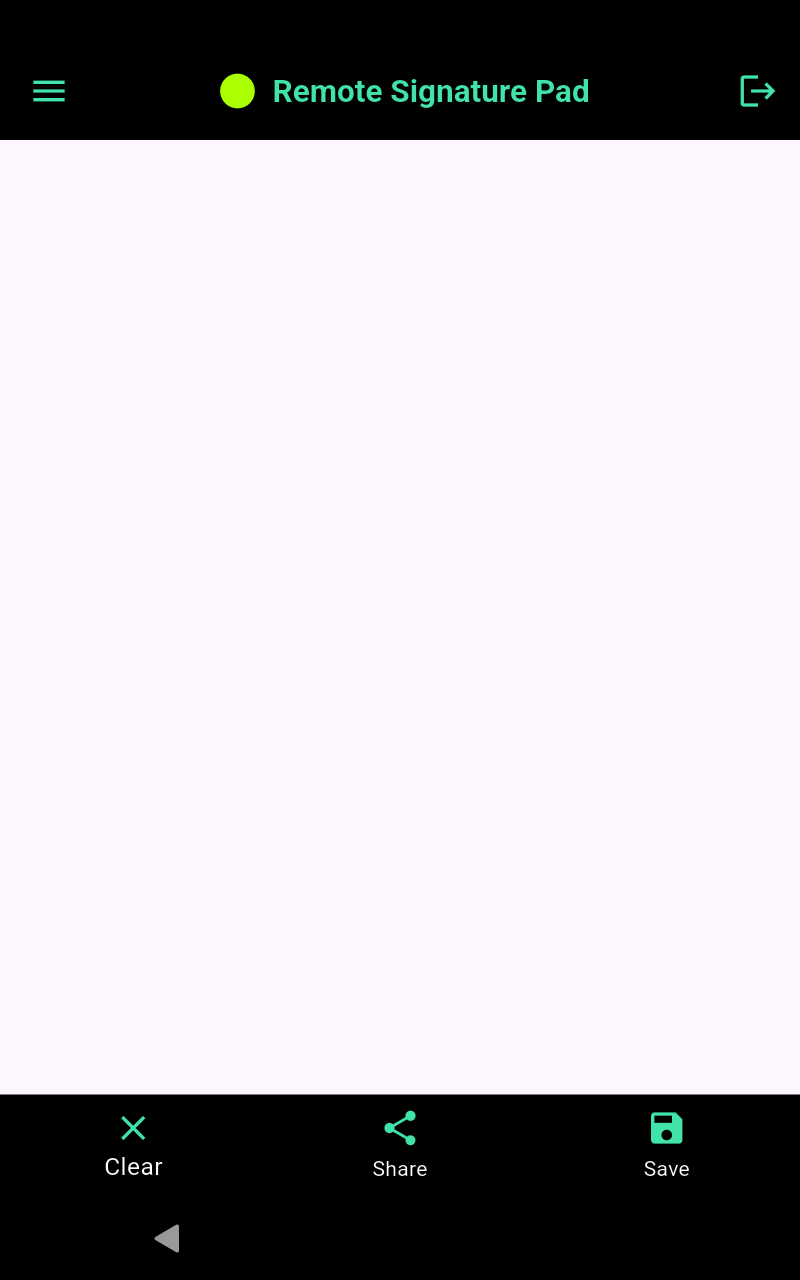
On your computer, open the document or application where you want the signature to appear — any program with a signature field that accepts mouse input will work (PDF signing tools, web forms, document software, and so on).
Now simply draw your signature with your finger or a stylus on your mobile device’s screen. Every stroke you make is mirrored instantly as mouse movement on your computer, drawing the signature directly into the open signature field.
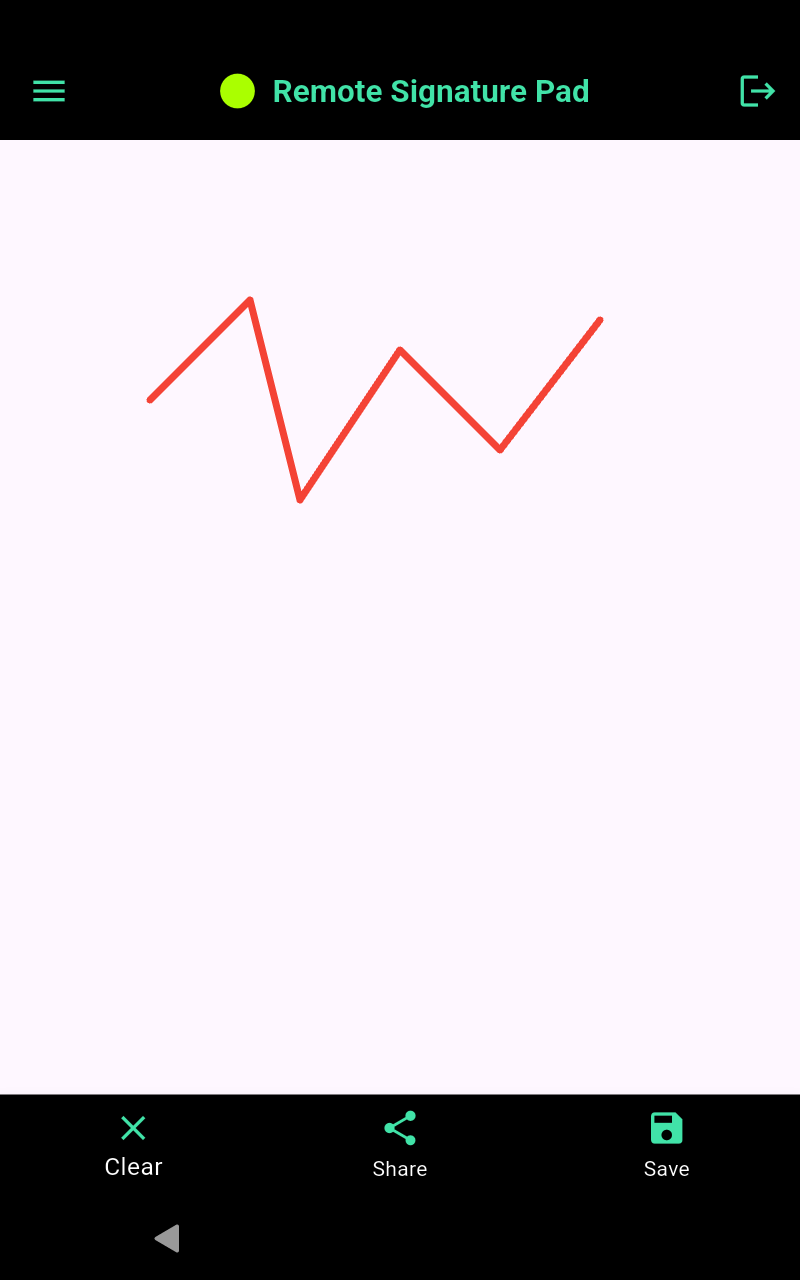
Use Clear to redo a stroke, Save to store the signature on your device, or Share to send it elsewhere.
Tip: for the cursor to land precisely inside your document’s signature box every time, set up a Saved Signature Window on the computer app once — it will then be remembered for future signing sessions.