
Need to sign a PDF but you do not have a signature pad? You can sign a PDF with phone in a few minutes. Remote Signature Pad lets you draw your signature with your finger on an Android phone or iPhone, and the signature appears in the signature box of the PDF open on your Windows or Mac computer.
How to sign a PDF with phone, step by step
- Install the mobile app from Google Play or the App Store. The Lite version is free and allows one signing session per day. The full version removes that limit.
- Download the free computer app for Windows 10 or later, or macOS, from the Downloads page. The Windows guide and the Mac guide walk you through the first start.
- Connect your phone to your computer. On the same Wi-Fi network, tap IP Network and then Auto Connect. If Auto Connect does not find your computer, scan the QR code from the computer app or type the computer address.
- Open the PDF on your computer and tell the app where the signature goes (see below).
- Sign on your phone with your finger. Your signature is drawn into the PDF.
Choose where the signature goes
The computer app draws your signature by moving the mouse cursor inside the signature area, so it needs to know where that area is. You can drag a box anywhere with Manual Sign from the tray menu, save a program window once so the app remembers it, or switch on the Intelligent Signature Field Tracker to let the app look for signature lines and boxes by itself. While you sign, the cursor stays inside the area, so the signature cannot land outside the box. The computer app actions page explains each option.
Which connection should I use?
- Forward Connection (Wi-Fi): the usual choice for Android and iPhone. See the Forward Connection guide.
- Reverse Connection (Wi-Fi): the computer connects to the phone, which helps when a firewall gets in the way. See the Reverse Connection guide.
- Bluetooth (Android only): see the Bluetooth guide.
- USB cable (Android only): see the USB guide.
Is it safe to sign a PDF with phone this way?
Connections can use SSL and an authentication phrase, so only devices you set up can send a signature to your computer. You can switch these on in the settings of both apps.
Sign a PDF with phone: Windows or Mac?
The steps are almost the same, but the first start differs. On Windows you extract the downloaded zip file, right-click the program and choose Run as administrator, then click Run anyway on the blue Windows protected your PC screen. On a Mac you Control-click the app, choose Open, and then allow Accessibility and Screen Recording when the app says Permission Needed. Both are one-time steps, and the Windows and Mac guides show them with screenshots.
Tips for a clean signature
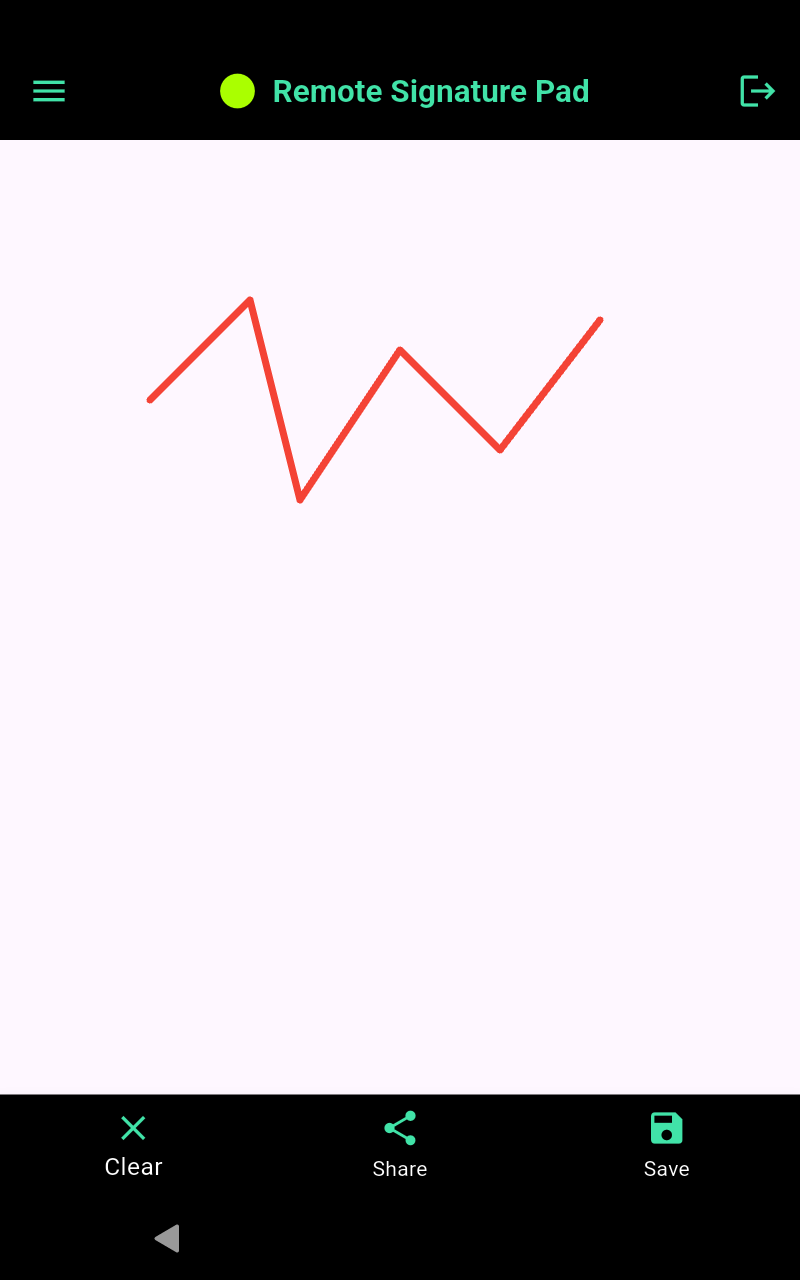
On the phone you will see three buttons under the signing area: Clear, Share and Save. Press Clear if you want to start again before the signature is complete. In the mobile app settings you can change the ink color and the line width, and turn on Bezier curve smoothing for smoother strokes. Read the Mobile App Settings Guide for the full list.
Common questions
- Do I need Wi-Fi to sign a PDF with phone? Wi-Fi is the usual way. Android phones can use Bluetooth or a USB cable instead.
- Does it work with any PDF program? It works with programs where you can draw a signature with the mouse, including Adobe Reader. See our post on how to sign Adobe Reader with your phone.
- Can I sign more than once? Yes. Press Clear on the phone to start the signature again.
Ready to try it? Open the Get Now page, or read how it works and the FAQ.
Leave a Reply