
An Android phone is the most flexible way to use a phone as a signature pad. With Remote Signature Pad, an Android phone as a signature pad for your PC can connect four ways: Wi-Fi, QR code, Bluetooth or a USB cable. You need Android 7.0 or later and a computer with Windows 10 or later (or a Mac).
1. Wi-Fi with Auto Connect
Put the phone and the PC on the same Wi-Fi network, tap IP Network in the app and tap Auto Connect. The app finds the computer by itself. This is the easiest way. See the Forward Connection guide.
2. Wi-Fi with a QR code or an address
If Auto Connect does not find the PC, open the computer app tray menu, choose Actions, then Generate QR Code, and scan it from Manual Connect on the phone. You can also type the address, for example 192.168.1.200:36969.
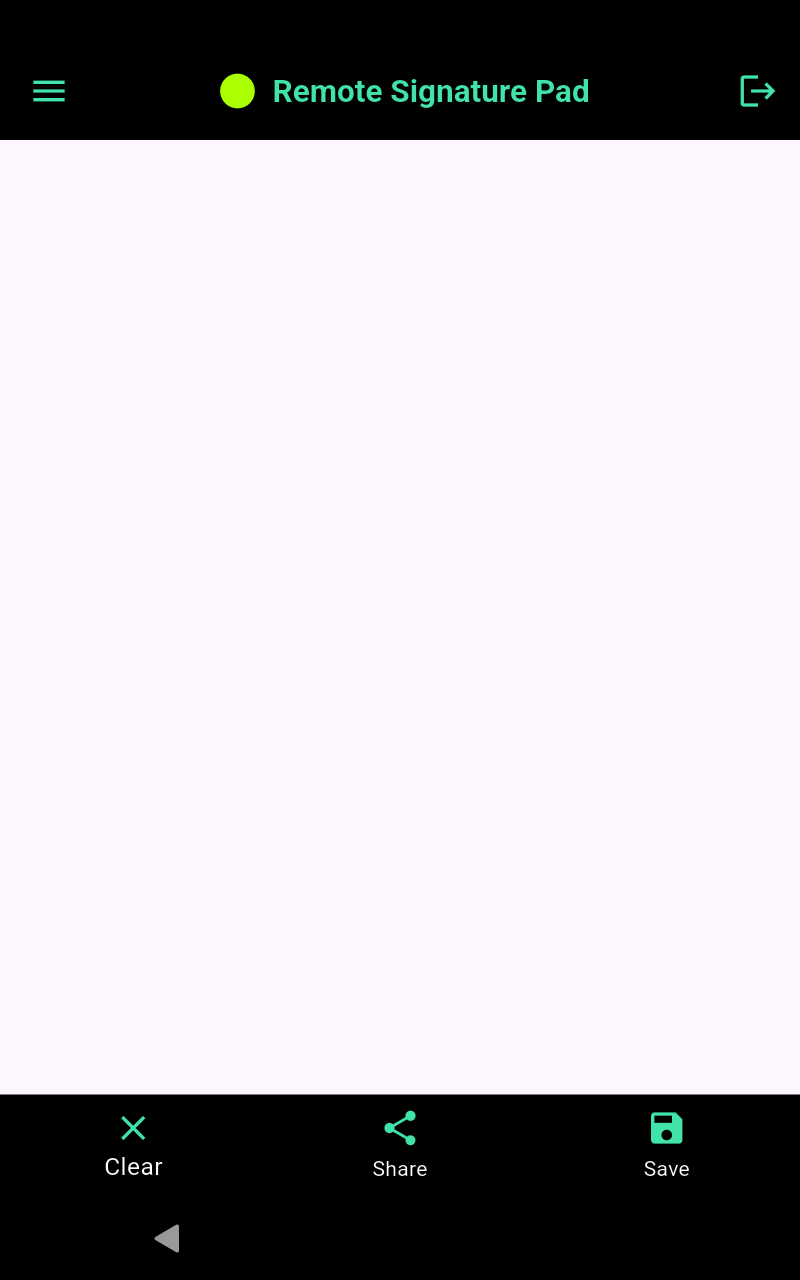
3. Bluetooth
Your Android phone can act as a Bluetooth pen mouse, even without the computer app. It must support Bluetooth HID. Tap Bluetooth on the welcome screen, accept the permissions and pair with your PC. Read the Bluetooth guide and turn your Android phone into a Bluetooth pen mouse.
4. USB cable
Connect the phone to the PC with a USB cable and turn on USB tethering. A USB Tether button then appears on the IP Network screen. See the USB guide.
Which one should you pick?
- Same Wi-Fi at home or the office: Auto Connect.
- Auto Connect fails: QR code or the typed address. If a firewall blocks it, try a Reverse Connection.
- No computer app, or no Wi-Fi: Bluetooth.
- No Wi-Fi and you want a cable: USB. Read signature pad without WiFi.
Get started
Install the app from Google Play, and the computer app from the Downloads page. The Windows guide covers the first run. The free Lite version allows one signing session per day, and the full version has no daily limit.
Leave a Reply