
Can you use handphone to sign a document that is open on your computer? Yes. With Remote Signature Pad, your handphone (mobile phone or smartphone) becomes a signature pad. You sign with your finger and the signature is drawn into the signature box on the computer screen.
What can you sign?
You can sign any document where the signature can be drawn with the mouse: a PDF in Adobe Reader, a form in your business or point-of-sale software, or a signature box on a web page. If it can be signed with a mouse, you can use handphone to sign it instead.
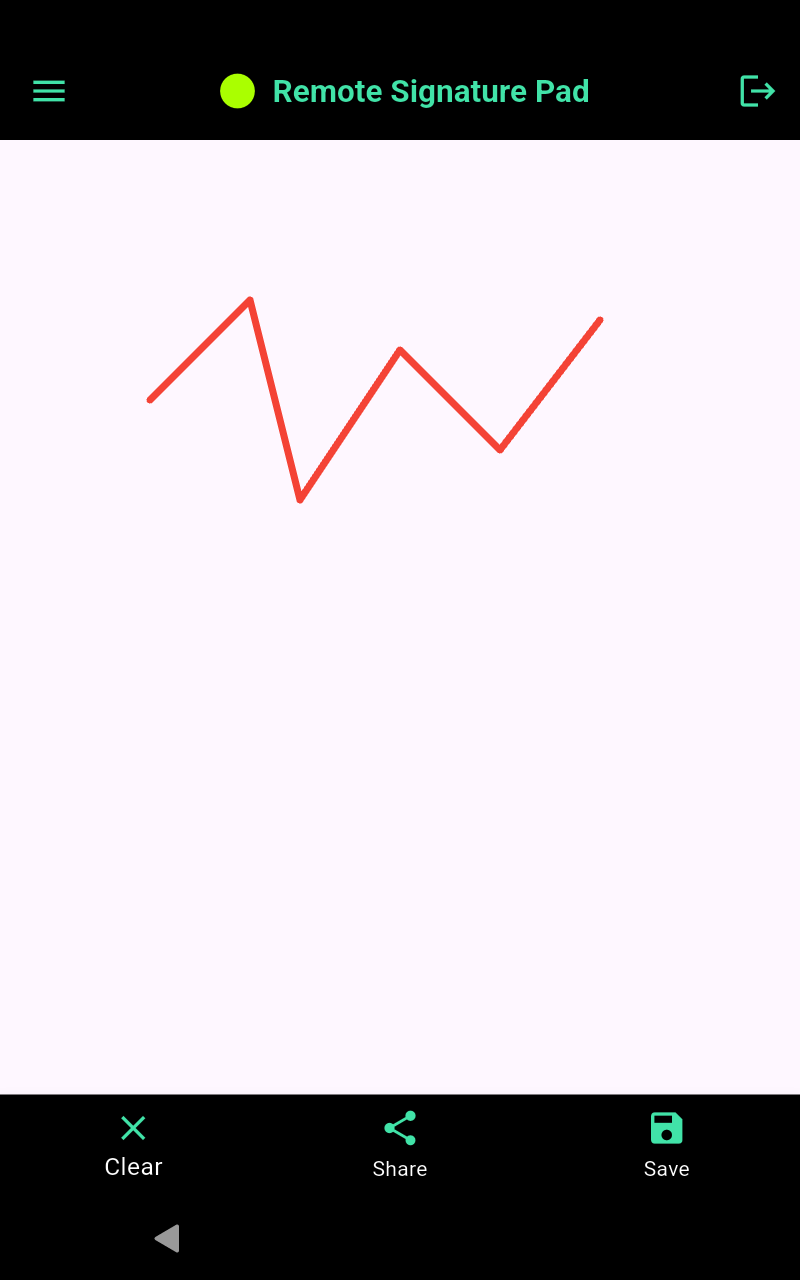
How to use handphone to sign, in four steps
- Install the app on your handphone from Google Play or the App Store. The Lite version is free for one signing session per day.
- Install the free computer app on your Windows 10 (or later) or Mac computer. Get it from the Downloads page.
- Connect the two by Wi-Fi. Tap IP Network on your handphone, then Auto Connect. Android also offers Bluetooth and USB.
- Open your document, then sign on your handphone.
Signing on the phone or signing on a tablet?
The phone is the simplest, since you already carry it. If you want a screen that stays at the counter, the Tablet Edition is an Android tablet with a stylus that arrives ready to use.
Common questions
- Do I need a hardware signature pad? No. Your phone does the job.
- Does it work on iPhone? Yes, over Wi-Fi (iOS 15.5 or later).
- My phone cannot find the computer. Check that both are on the same Wi-Fi, then try the QR code or type the address. The Forward Connection guide shows how.
Which handphones work?
Android phones with Android 7.0 or later, and iPhones and iPads with iOS 15.5 or later. The computer must run Windows 10 or later or macOS.
Tips for a smooth signing
- Keep the phone and the computer on the same Wi-Fi network.
- Put the phone flat on a table so the signature stays steady.
- Change the ink color and line width in the settings until your signature looks right. The natural looking digital signature guide has more tips.
What if there is no Wi-Fi?
Android handphones can connect to the computer by Bluetooth or a USB cable. Read about a signature pad without WiFi. iPhones need an IP network connection.
Other ways people use it
Many people use the same setup to sign a PDF with a phone, to sign into a signature field, or at a counter with point-of-sale software.
See all answers in the FAQ, or read how it works and the features.
Leave a Reply