
You can sign Adobe Reader with phone instead of using a mouse or a trackpad. With Remote Signature Pad, you draw your signature on your Android phone or iPhone and it appears in the Draw box in Adobe Reader on your Windows or Mac computer.
Before you start
Install the mobile app from Google Play or the App Store, and the free computer app from the Downloads page. Connect your phone to your computer as described on the How it works page. The screens in Adobe Reader can look a little different between versions, but the idea is the same.
Sign Adobe Reader with phone in five steps
- Open your PDF in Adobe Reader.
- Click E-Sign.
- Under Fill and sign yourself, click Add signature.
- In the dialog that opens, click Draw.
- Connect with Remote Signature Pad and sign on your phone, then click Apply in Adobe Reader.

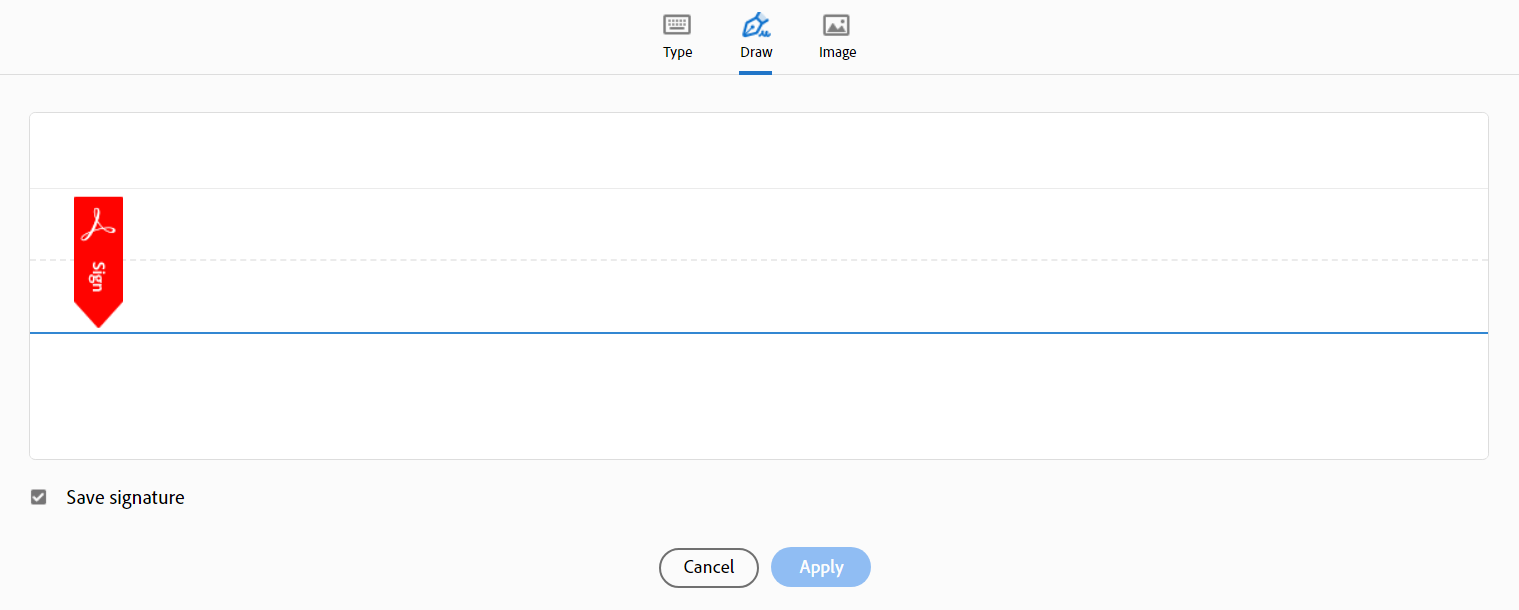
Tips if the signature does not land in the box
The Draw box is a signature canvas, and the computer app needs to know where it is. Use Manual Sign from the tray menu (Windows) or the menu bar icon (Mac) and drag a box over the drawing area. If you sign in Adobe Reader every day, save the window once with Select Signature Window so the app remembers it. The computer app actions page explains both.
For the full list of steps on your system, see the Windows usage guide or the Mac usage guide.
Which connection works best?
Wi-Fi Forward Connection with Auto Connect is the easiest. Android phones can also use Bluetooth or a USB cable. Read the Forward Connection guide if Auto Connect does not find your computer.
Save time next time
If you sign in Adobe Reader every day, you do not need to drag a box each time. Open the computer app tray menu, choose Actions, then Select Signature Window, click the Adobe Reader window and drag the signature box once. The box is stored as a proportion of the window, so it follows the window when you move or resize it.
If something does not work
- The signature appears in the wrong place. Use Manual Sign to drag a box over the Draw area. Manual Sign overrides the other settings.
- The cursor will not leave the box. While you sign, the cursor is held inside the signature area. Press Alt+Shift+Esc to release it.
- Nothing happens when you sign. Check that the computer app is running, that the status says Listening for a Forward Connection, and that the phone shows it is connected. See our post on a signature pad not connecting.
Other programs
The same method works in other programs where a signature can be drawn with the mouse. Read about signing into any signature field, or try signing a PDF with your phone in a different PDF program.
Want to try it? Start with the free Lite version on the Get Now page.
Leave a Reply