
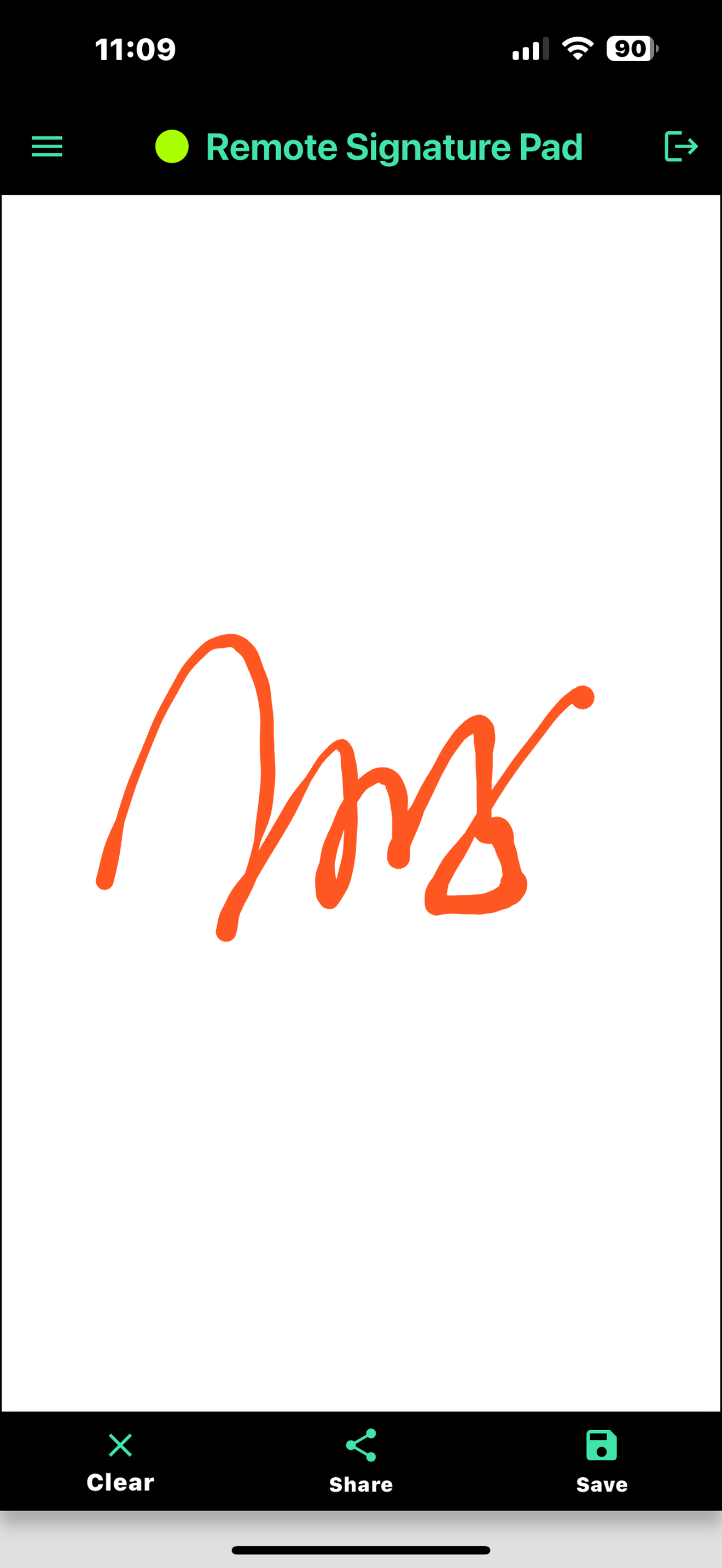
A signature drawn with a finger can look stiff or shaky. If you want a natural looking digital signature, a few settings in the Remote Signature Pad mobile app make a big difference.
Turn on Bezier curve smoothing
A Bezier curve joins the points of your stroke into a smooth line instead of straight little segments. Turn on Enable Bezier Curve in the mobile app settings for smoother, more realistic pen strokes. If you are curious how it works, read What is a Bezier curve?
Adjust the line width
A line that is too thin looks scratchy and one that is too thick looks heavy. Try different values in Adjust Line Width until your signature looks like the pen you normally use.
Pick the ink color
Black or dark blue looks most like a pen on paper. Choose your color in Ink Color.
Add the signer name to saved images
If you save signature images, the signer name setting can add the name to the saved image.
Clear automatically
Auto Clear Signature Timing clears the signing screen after a set time, so the next person starts with a clean pad.
Record biometric details
If you need more than the picture of the signature, Enable Biometric Recording records speed and stroke direction with the signature.
Tips for a good signature
- Hold the phone steady, for example flat on a table.
- Sign at a normal speed. Very slow strokes can look shaky.
- Try a few signatures, then adjust one setting at a time.
What biometric recording does
If you turn on Enable Biometric Recording, a Record button appears at the bottom right of the signing screen. Press Record, sign, then press Stop. The app saves the biometric signature in the Saved Signatures list as a .bio file, which captures behavior such as speed and stroke direction, and you can share that file. Use it when you need more than a picture of the signature.
Mouse left click
Signing normally uses the left mouse button on the computer. The Enable Mouse Left Click setting is on by default, and you can turn it off for programs that do not need it.
Where to sign
The signature appears in the document on your computer. See how to sign a PDF with your phone or how to sign into any signature field.
See all the settings in the Mobile App Settings Guide and the signature features page. New here? Start at How it works, or get the app from the Get Now page.
Leave a Reply