
This guide shows how to install the Remote Signature Pad computer app on Windows, so your phone works as a signature pad.
Step 1: Download and extract
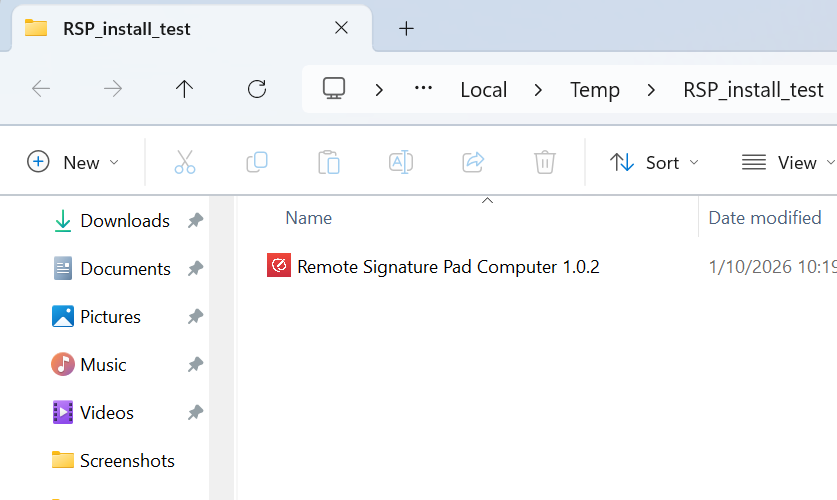
Download the Computer App — it comes as a single .zip file. Fully extract it to a folder of your choice first (right-click the zip > Extract All). Don’t try to run the .exe from inside the zip preview itself — extract it properly first.
Step 2: Run as administrator
Right-click the extracted .exe and choose Run as administrator. This is required because the app moves your mouse cursor and simulates clicks system-wide in order to draw your signature into other applications.

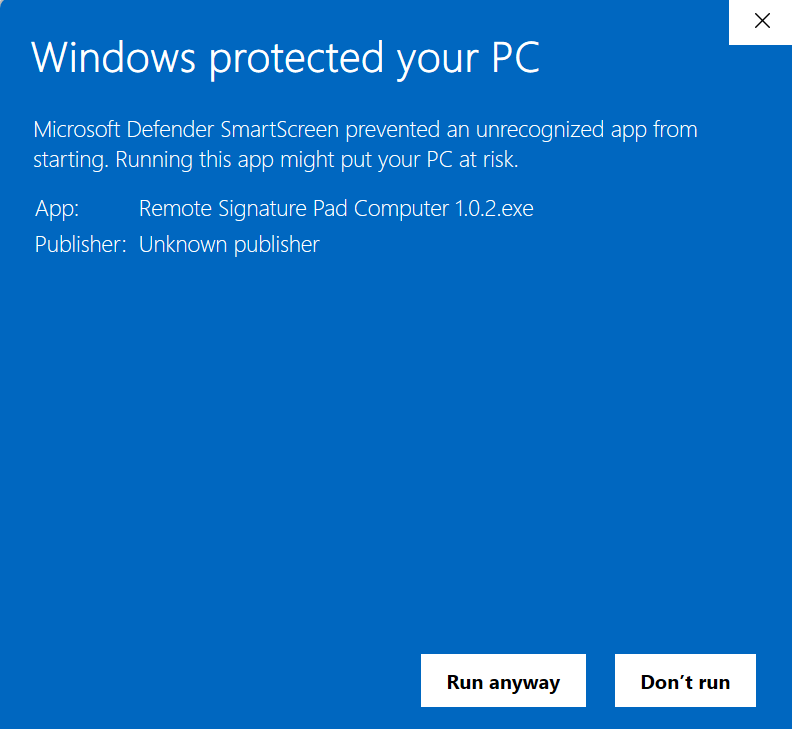
Step 3: Click “Run anyway” on the SmartScreen warning
Since the app isn’t yet registered with Microsoft as a known publisher, Windows will show a blue “Windows protected your PC” screen the first time you run it, listing the publisher as unknown. This is expected — click Run anyway to continue.
Step 4: Allow network access
The first time it runs, Windows Security will ask whether to allow Remote Signature Pad Computer through the firewall on public and private networks. Click Allow access — this is needed so your mobile device can find and connect to the app over Wi-Fi, Forward or Reverse Connection.
Step 5: Find it in the system tray
Once running, the app lives in the Windows system tray (bottom-right of the taskbar, next to the clock) — no window opens. If you don’t see it right away, click the ^ arrow to show hidden icons.

Step 6: Right-click for status and controls
Right-click the tray icon to open the control menu:

- The top item (e.g. Forward Connection) opens a submenu to switch between Forward, Reverse and Bluetooth connection types.
- Below it, the status line (e.g. Listening) starts or stops the server.
- Actions opens a submenu with, among other things, Generate QR Code (or Auto/Manual Connect, depending on the current mode), Select Signature Window, Manual Sign, and Check for Updates.
- Settings, About and Quit round out the menu.
For the full step-by-step on linking your mobile device, see How it works, or jump straight to Forward Connection, Reverse Connection, Bluetooth Connection or USB Connection.