
A laptop has a trackpad, and signing with a trackpad is clumsy. You can sign documents on a laptop with your phone instead. Remote Signature Pad draws what you sign on the phone into the document open on your Windows or Mac laptop.
What you need
- A Windows 10 (or later) or Mac laptop with the free computer app from the Downloads page.
- An Android phone or an iPhone with the mobile app from Google Play or the App Store.
- A connection: the same Wi-Fi network is easiest.
Sign documents on a laptop in four steps
- Open the computer app. On Windows, look for the icon in the system tray (it may be under the up arrow). On a Mac, it is in the menu bar.
- On the phone, tap IP Network and then Auto Connect. If the laptop is not found, scan the QR code from the tray menu (Actions, then Generate QR Code).
- Open your document and mark the signature area with Manual Sign, or use a saved window.
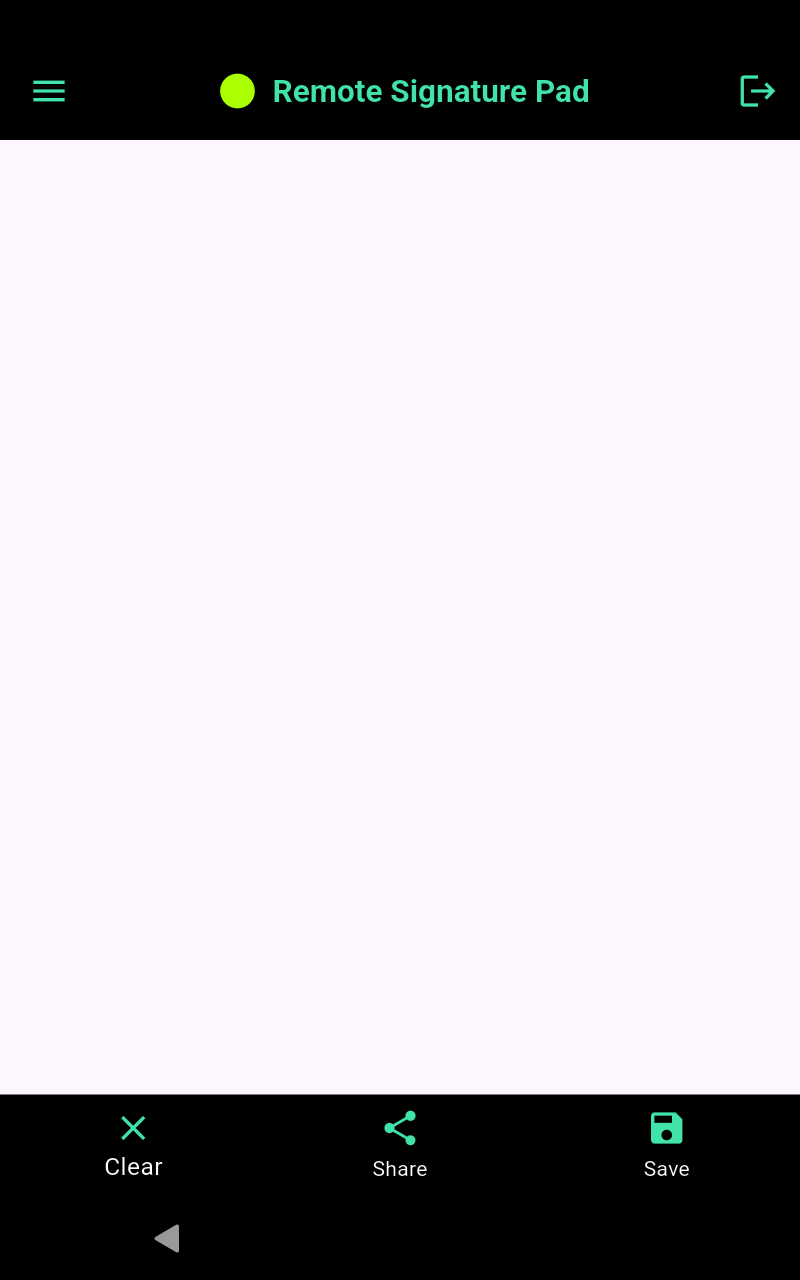
- Sign on the phone. The signature appears in the document.
Laptop with Bluetooth
If you have an Android phone and your laptop has Bluetooth, the phone can act as a Bluetooth pen mouse without the computer app. See the Bluetooth guide.
On the go with no Wi-Fi
Android phones can connect to a laptop with a USB cable using USB tethering. Read signature pad without WiFi. iPhone and iPad need an IP network connection.
Set up the laptop
The first run is slightly different on each system. On Windows, extract the zip, run as administrator, click Run anyway on the SmartScreen warning and allow network access. On a Mac, open the app with Control-click and allow Accessibility and Screen Recording. See the Windows guide and the Mac guide.
If it does not connect
Make sure the laptop and phone are on the same Wi-Fi and the app status says Listening. Our checklist for a signature pad that is not connecting goes through the common causes. For the usual use, see how to sign a PDF with your phone.
Leave a Reply