
If your signature pad is not connecting, do not worry: it is usually one of a few simple things. This checklist for Remote Signature Pad goes from the most common cause to the least, so work through it in order.
1. Use the latest versions
Install the newest computer app from the Downloads page and the newest mobile app from Google Play or the App Store. An old app on either side is a common reason for a signature pad not connecting.
2. Check the computer app is running and listening
On Windows, right-click the Remote Signature Pad icon in the system tray (it may be under the ^ arrow). On a Mac, click the icon in the menu bar. The connection type at the top should be Forward Connection and the status line below it should say Listening. If it does not, click the status line to start it. On Windows, the app also asks for network access the first time it runs, so allow it.
3. Use Forward Connection on the phone too
On the phone, tap IP Network and make sure Forward Connection is selected at the bottom before you tap Auto Connect. The phone and the computer app must be in matching modes.
4. Put both devices on the same network
Auto Connect finds the computer by itself, but only when your phone and computer are on the same Wi-Fi network. It uses Bonjour (multicast DNS), so a switch or router that blocks that traffic will stop it. The firewall needs UDP port 5353 open for Bonjour, and Remote Signature Pad itself uses port 36969 by default. If you changed the port, enter the same one in the computer app settings.
5. Give Auto Connect more time
On a slow Wi-Fi network, Auto Connect can time out before it finds the computer. In the mobile app, open Settings, then General Settings, and raise Auto Discovery Time Out to a larger number of seconds.
6. Connect without Auto Connect
If Auto Connect still fails, you can skip it:
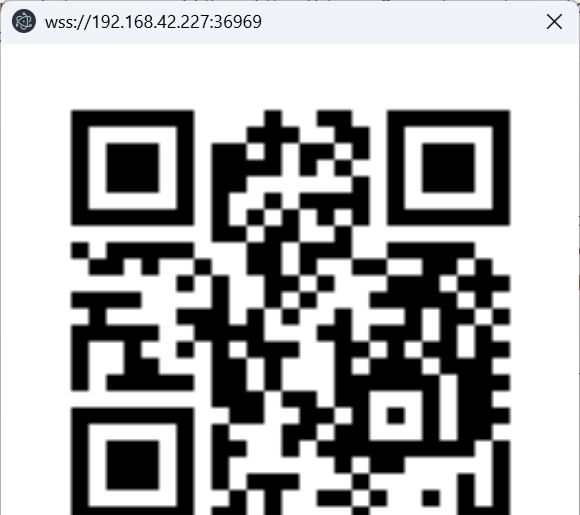
- Scan the QR code. On the computer, open the tray menu, choose Actions, then Generate QR Code. On the phone, tap Manual Connect, tap the QR icon and point the camera at the code.
- Type the address. Tap Manual Connect and enter the computer address and port, for example 192.168.1.200:36969.
The Forward Connection guide shows every screen.
7. Try another connection
If the network blocks the phone from reaching the computer, try a Reverse Connection, where the computer connects out to the phone. Android phones can also use Bluetooth or a USB cable.
Only one computer should run the app
Auto Connect finds your computer by its name on the Wi-Fi. If two computers on the same Wi-Fi are both running the Remote Signature Pad computer app, Auto Connect can pick the wrong one or keep saying “connecting”. Close the app on the other computer, or connect with the QR code or Manual Connect instead.
Quick checklist
- Latest computer app and latest mobile app installed.
- Computer app running, status says Listening, mode is Forward Connection.
- Phone is on IP Network with Forward Connection selected.
- Phone and computer on the same Wi-Fi network.
- Firewall allows UDP 5353 (Bonjour) and port 36969, or the port you chose.
- SSL and the authentication phrase are set the same way on both sides.
Settings that must match
If you turned on SSL in one app, turn it on in the other too. You can choose not to use SSL, but the phone and the computer app must agree. If you added an authentication phrase on the computer, the phone needs the same phrase. See Use SSL and Server Authentication. The same goes for the network port, which is 36969 by default (Default Port).
Use the connection history
The phone remembers earlier successful Forward connections as an address and port, for example 192.168.1.200:36969. If the computer has not changed its address, you can pick it from the history instead of typing. The Max Connections setting controls how many are stored.
Still stuck? Check the FAQ or contact us through the Get In Touch page.
Leave a Reply