
You want to add a handwritten signature to a PDF, not a typed name. Drawing it with a mouse often looks shaky. With Remote Signature Pad you draw it with your finger on your phone, and the signature appears in the PDF open on your computer.
What you need
The mobile app on your Android phone or iPhone from Google Play or the App Store, and the free computer app from the Downloads page. Connect them as described on How it works.
Add a handwritten signature to a PDF in Adobe Reader
- Open the PDF and click E-Sign.
- Click Add signature.
- Click Draw.
- Sign on your phone. The strokes appear in the Draw box.
- Click Apply in Adobe Reader and place the signature on the page.
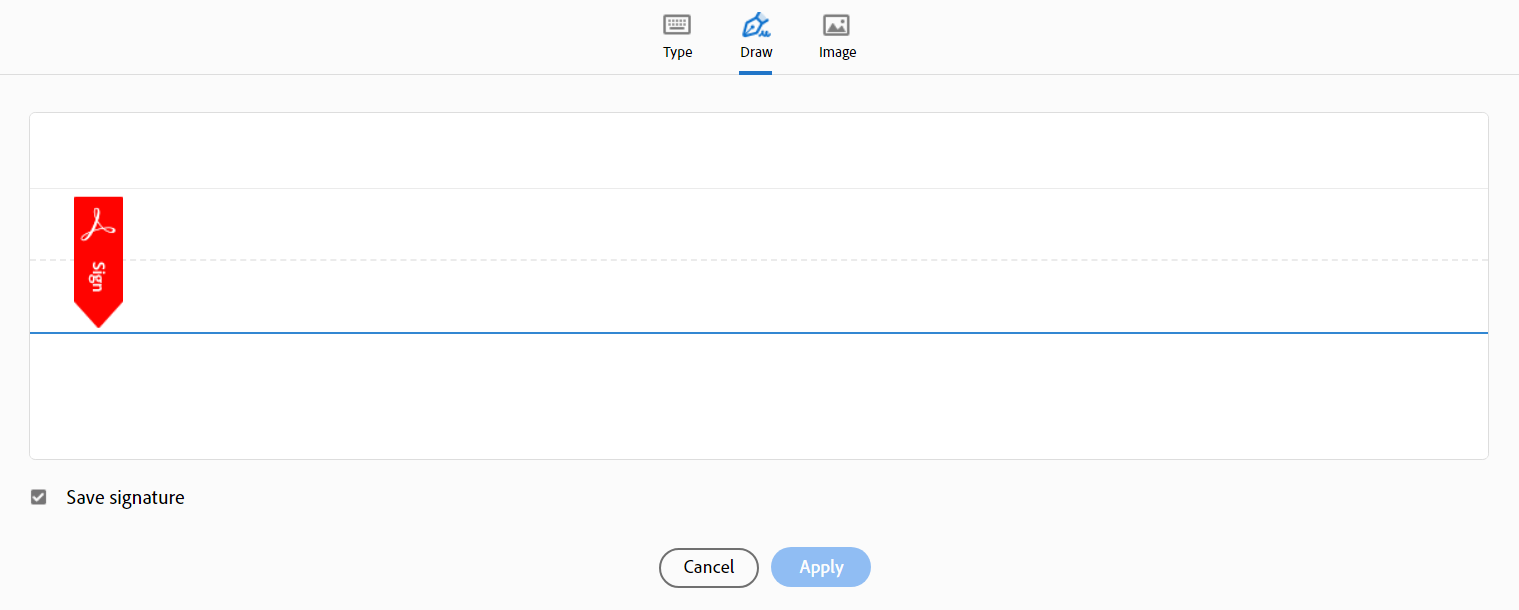
The Draw dialog also has a Save signature tick box, so Adobe Reader can keep the signature for next time. The full walk-through with screenshots is in how to sign Adobe Reader with your phone.
Other PDF programs
The method works in any program where you can draw a signature with the mouse. Tell the app where the signature goes with Manual Sign, or save the window once with Select Signature Window. See how to sign into any signature field.
Make the signature look more like your own
- Turn on Bezier curve smoothing for smoother lines.
- Choose a line width and an ink color that look like your pen.
- Use Clear on the phone to try again before you apply it.
More tips are in how to get a natural looking digital signature.
If the signature does not appear
Check that the phone shows it is connected, and that the computer app is running. Our connection checklist covers Auto Connect, QR codes and firewall settings.
Leave a Reply