
When you sign on your phone and the signature appears on your computer, a secure phone signature setup makes sure only your own devices can talk to each other. Remote Signature Pad has three settings for that: SSL, an authentication phrase and the network port.
1. SSL: an encrypted link
SSL (Secure Sockets Layer) is a standard way to encrypt the link between two devices. Remote Signature Pad can use SSL between the mobile app and the computer app. A default self-signed certificate is used for both Forward and Reverse connections. You can choose not to use SSL, but then the computer app must also be set to not use SSL, because both sides need to agree. See Use SSL.
2. An authentication phrase
If several Remote Signature Pad computers run on your network and you want to secure the computer app on your desktop, add a password phrase. The phone must use the same phrase to connect. See Server Authentication.
3. The network port
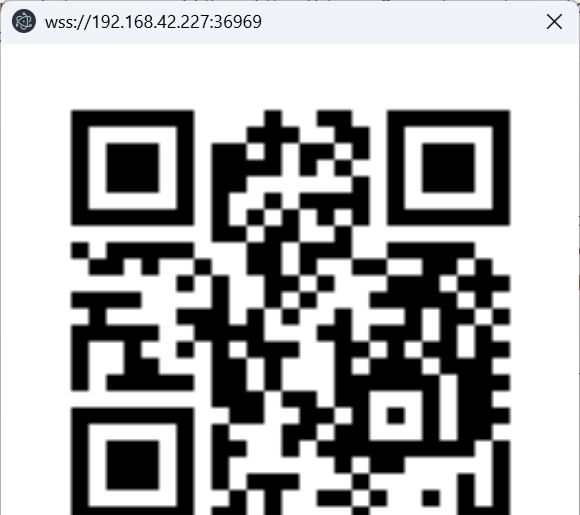
The apps talk to each other on port 36969 by default. If your network needs a different port, you can change it in the settings, and use the same port on both sides. See Default Server Network Port.
Keep it on your own network
The phone connects to your computer on your own network. Auto Connect uses Bonjour to find the computer on the same Wi-Fi network. This setup does not send your signature to a signing website.
A simple checklist
- Turn on SSL on both apps.
- Add an authentication phrase on the computer app and enter the same phrase on the phone.
- Allow network access when Windows asks.
- Keep the computer app up to date from the Downloads page.
If a setting stops the connection, check that both sides match. Our connection checklist covers this. For how the pieces fit together, read How it works and the FAQ.
Leave a Reply