
Do you want to use handphone as signature pad instead of buying a hardware signature pad? With Remote Signature Pad you can. Your phone (handphone, mobile phone or smartphone) becomes the pad: you sign with your finger, and the signature appears in the document on your computer.
What you need to use handphone as signature pad
- The mobile app on your Android phone (Android 7.0 or later) or iPhone (iOS 15.5 or later), from Google Play or the App Store.
- The computer app, a free download for Windows 10 or later and macOS, from the Downloads page.
- A connection between the two: Wi-Fi, and on Android also Bluetooth or a USB cable.
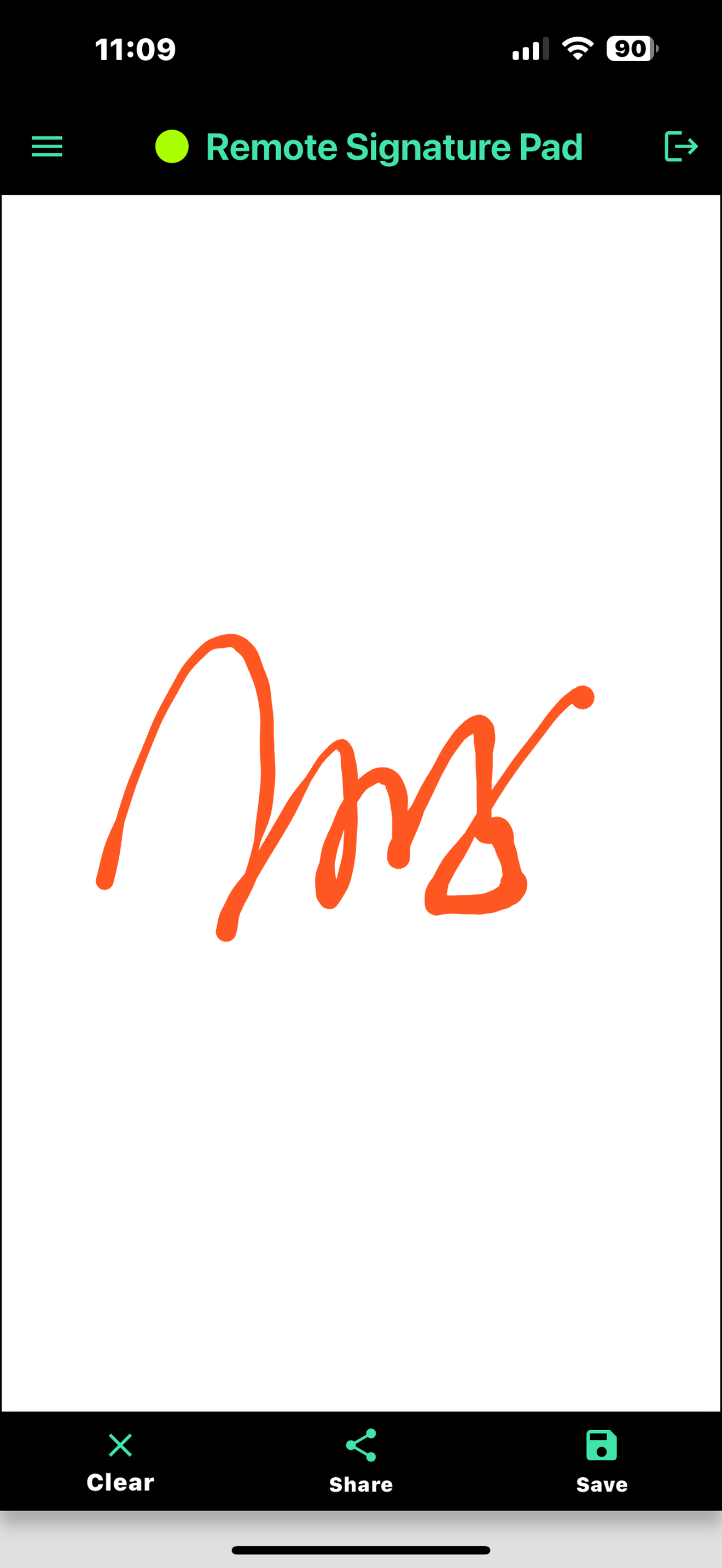
How it works
You open the document on your computer, for example a PDF or a form in your business software. When you sign on your handphone, the computer app moves the mouse cursor inside the signature area and draws your strokes there. It works with ordinary Windows and Mac programs and with signature boxes on web pages, so you do not need special software from the document maker.
Why people use their handphone as a signature pad
- You already own the device, so there is no extra hardware to buy or carry.
- You can choose your ink color and line width, and Bezier curve smoothing makes the strokes look more natural. See the signature features.
- Connections can use SSL and an authentication phrase.
- You can try the free Lite version first. It allows one signing session per day.
Need a dedicated pad?
If you prefer a device that is only for signing, look at the Tablet Edition, an Android tablet with a stylus that comes ready to use.
Get started
Android handphone or iPhone?
Both work. On an Android handphone (Android 7.0 or later) you can choose Wi-Fi, Bluetooth or a USB cable. On an iPhone or iPad (iOS 15.5 or later) you connect by Wi-Fi, using Forward Connection or Reverse Connection. The signing screen works the same way on both.
Set up in three steps
- Install the mobile app on your handphone.
- Install the free computer app on your Windows or Mac computer.
- Open the mobile app, tap Bluetooth or IP Network, and connect.
The How it works page has each step with screenshots. If Auto Connect does not find your computer, scan the QR code that the computer app generates, or read what to do when a signature pad is not connecting.
Is it secure?
Remote Signature Pad can encrypt the link between the phone and the computer using SSL, and you can add an authentication phrase so that only your own phone can send a signature to your computer. Both are options in the settings, and the Use SSL and Server Authentication pages explain them.
Which version should I use?
Try the free Lite version first. It allows one signing session per day, which is enough to see that your handphone and computer work together. The full version has no daily limit.
Follow the three steps on the How it works page, or go straight to the Get Now page. Questions? The FAQ covers connections, versions and troubleshooting.
Leave a Reply