
Want to sign on Mac with iPhone? With Remote Signature Pad, your iPhone (iOS 15.5 or later) becomes the signature pad and your Mac shows the signature in the document. iPhone and iPad connect over Wi-Fi, using Forward or Reverse Connection.
What you need
- A Mac with the free computer app from the Downloads page.
- The Remote Signature Pad app on your iPhone, from the App Store. Start with the free Lite version, which allows one signing session per day.
- Your iPhone and Mac on the same Wi-Fi network.
Set up your Mac
- Open the app the first time. Hold the Control key and click (or right-click) Remote Signature Pad Computer in your Applications folder, choose Open, then click Open again. You only need to do this once. If you double-click instead, macOS says it cannot be opened because it is from an unidentified developer.
- Fix permissions. When the app says Permission Needed, click Fix Permission. System Preferences opens at Security & Privacy, then Privacy, and you tick the app under Accessibility and under Screen Recording. These permissions let the app move the cursor and find the signature area.
- Look for the menu bar icon. The app lives in the menu bar at the top of your screen.
The Mac Installation guide has screenshots of each step.
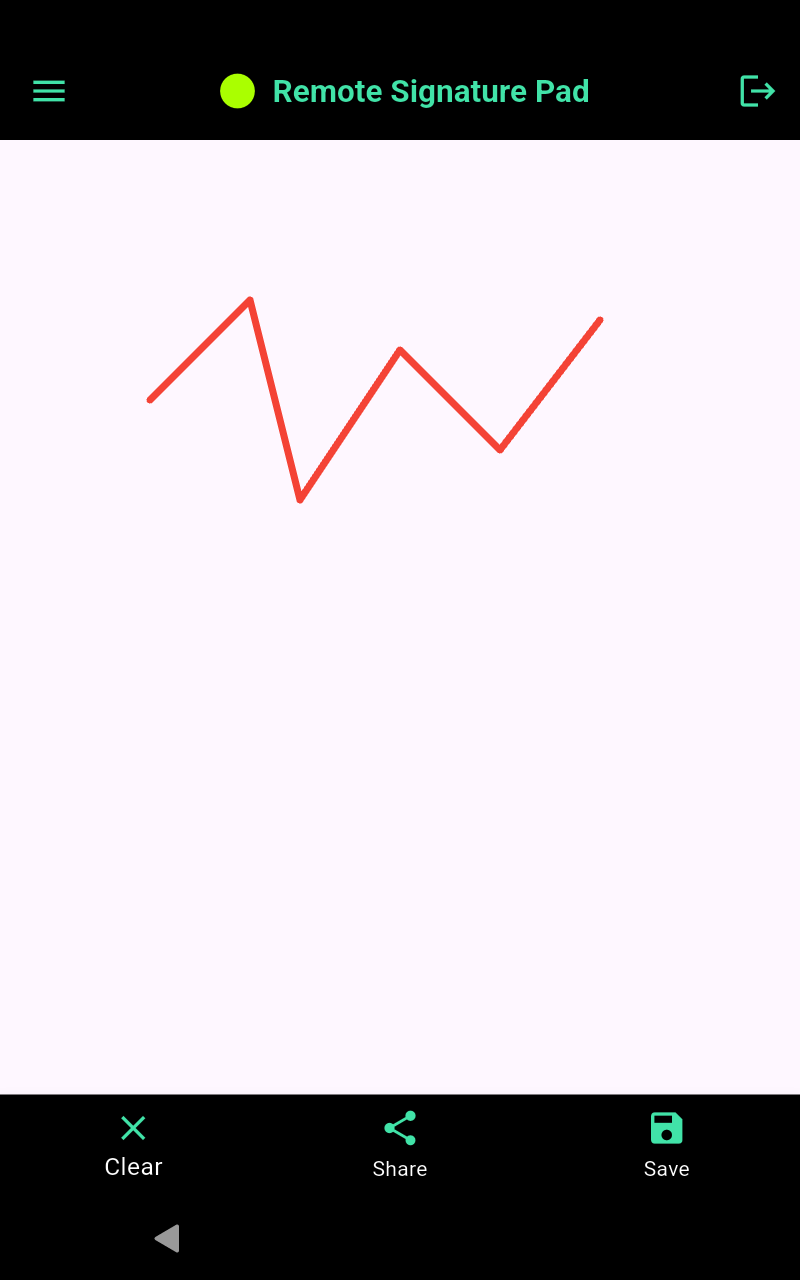
Connect your iPhone
Open the app on your iPhone, tap IP Network, and make sure Forward Connection is selected. Tap Auto Connect. If your Mac is not found, scan the QR code from the menu bar icon (Actions, then Generate QR Code) or type the Mac address. Details are in the Forward Connection guide. If a firewall gets in the way, try a Reverse Connection.
Sign
Open your document, point the app at the signature area using Manual Sign or a saved signature window, and sign on your iPhone. See the Mac usage guide for the steps.
Why does the Mac ask for permissions?
Accessibility lets the app move the cursor to draw your signature, and Screen Recording lets it see the window so it can find the signature area. You only need to allow them once. If macOS offers Quit and Reopen after you tick a permission, accept it.
Tips for using an iPhone with a Mac
- Keep the iPhone and the Mac on the same Wi-Fi network.
- If Auto Connect is slow, raise the Auto Discovery Time Out in the mobile app settings.
- If it still does not connect, use the QR code, or read our checklist for a signature pad that is not connecting.
What to sign
Anything where a signature can be drawn with the mouse: a PDF, a form in your business software or a signature box on a web page. See how to sign a PDF with your phone and how to sign into a signature field.
Bluetooth and USB connections are for Android phones only. More answers are in the FAQ.
Leave a Reply