
Reverse Connection flips the direction of Forward Connection: instead of the mobile device reaching out to the computer, the computer reaches out to the mobile device. Use this when it’s easier for the computer to find the mobile device than the other way around.
Step 1: Get the mobile app ready and waiting
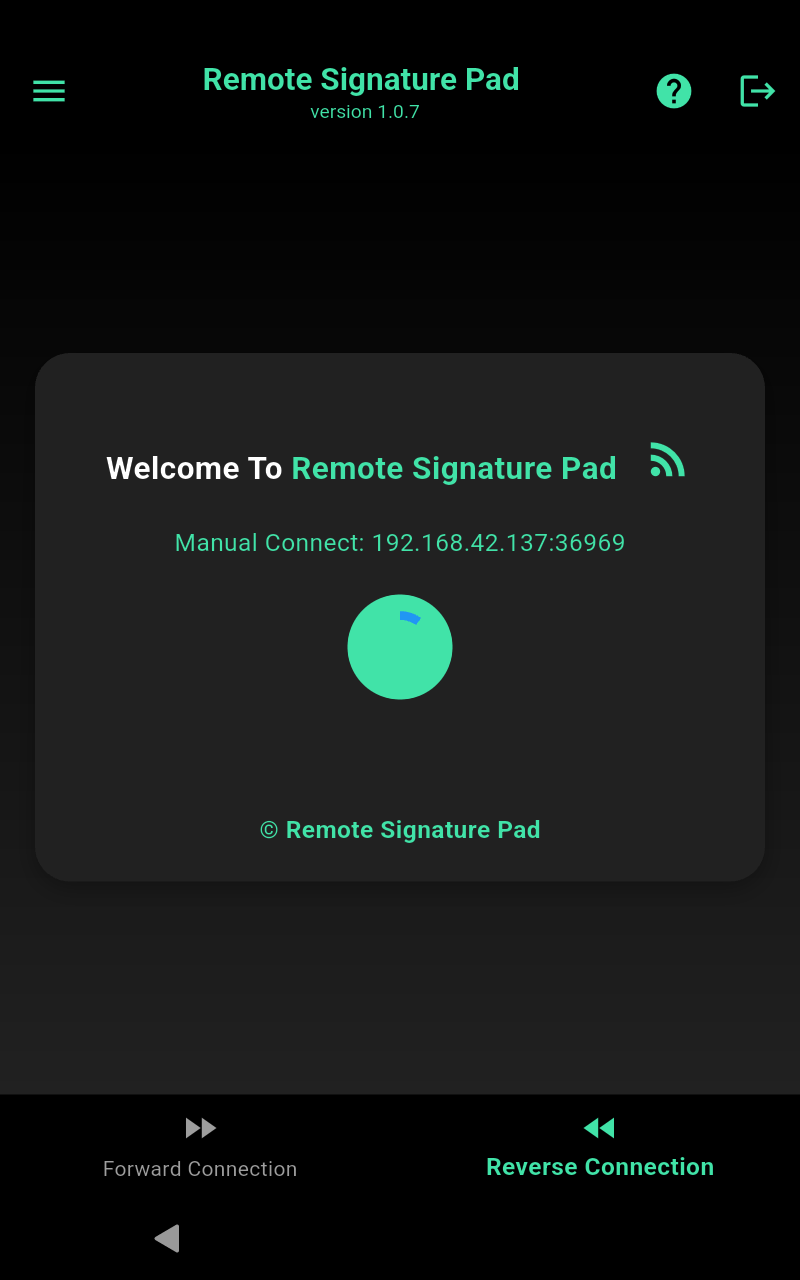
On the mobile app’s IP Network screen, switch the mode to Reverse Connection at the bottom of the screen. The device now displays its own address and waits for the computer to connect in — leave it open on this screen:
Step 2: Initiate the connection from the computer
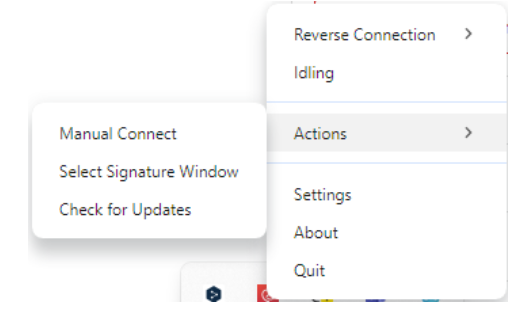
On the computer, right-click the Remote Signature Pad tray icon. If the connection mode is still set to Forward Connection, click it to see the other connection modes:

Click Reverse Connection to select it.

With the mobile app left open and waiting on the screen from Step 1, click Actions on the tray menu and choose Manual Connect — type in the address shown on the mobile screen above to initiate the link from the computer’s side.
Once connected, the mobile device’s screen becomes a wireless signature pad for the computer — see How it works for the signing step.