
Forward Connection is the default and most common way to link your mobile device to the computer: the mobile device connects out, reaching the Computer App wherever it’s running. On the mobile app’s welcome screen, tap IP Network — Forward Connection is already selected at the bottom of the screen.
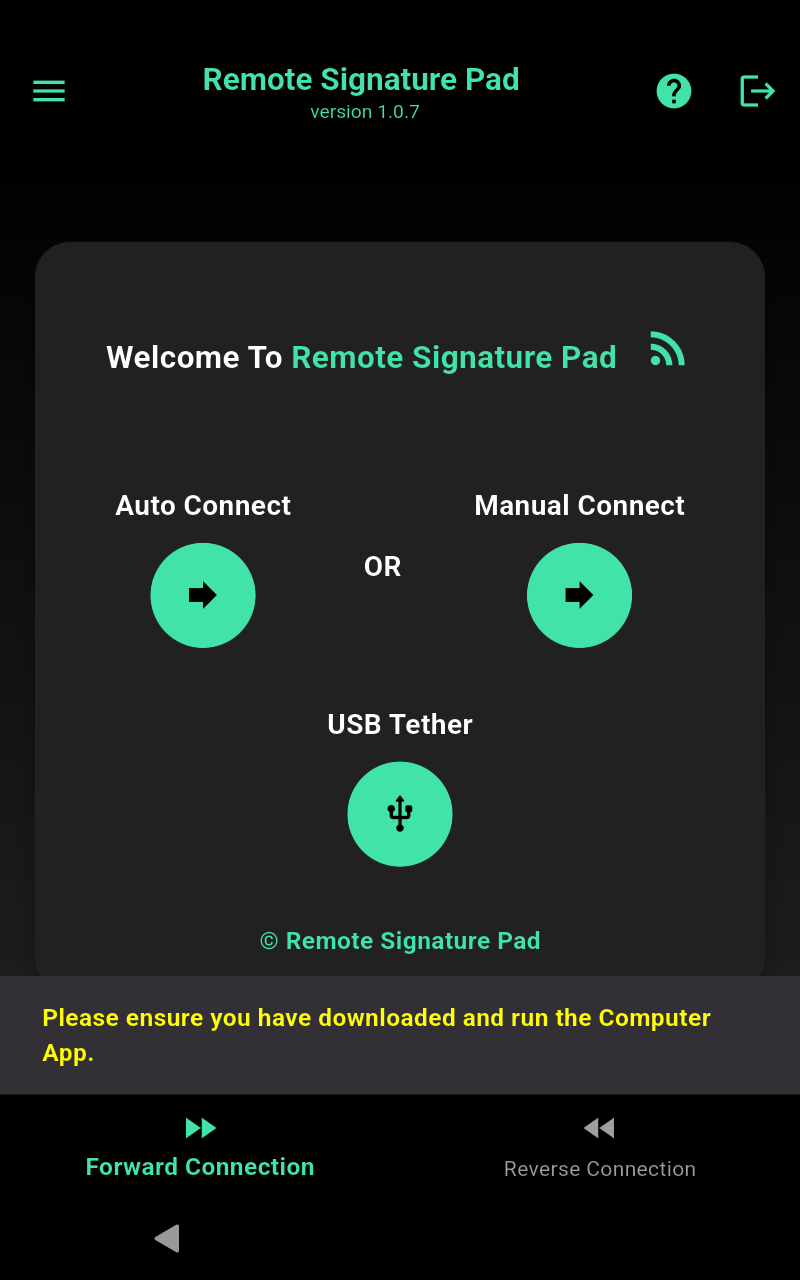
You have three ways to connect:
Auto Connect
The easiest option. As long as your mobile device and your computer are on the same Wi-Fi network and the Computer App is running, tapping Auto Connect will discover and connect to it automatically — no typing required.
Note: Auto Connect finds your computer by its name on the Wi-Fi. If two computers on the same Wi-Fi are both running the Remote Signature Pad computer app, Auto Connect can pick the wrong one or keep saying “connecting”. Close the app on the other computer, or connect with the QR code or Manual Connect instead.
Manual Connect
If auto-discovery doesn’t work — for example on a network that blocks device discovery — tap Manual Connect and type the computer’s address in the format <ip address>:<port> (for example 192.168.1.100:36969), then tap the arrow to connect.
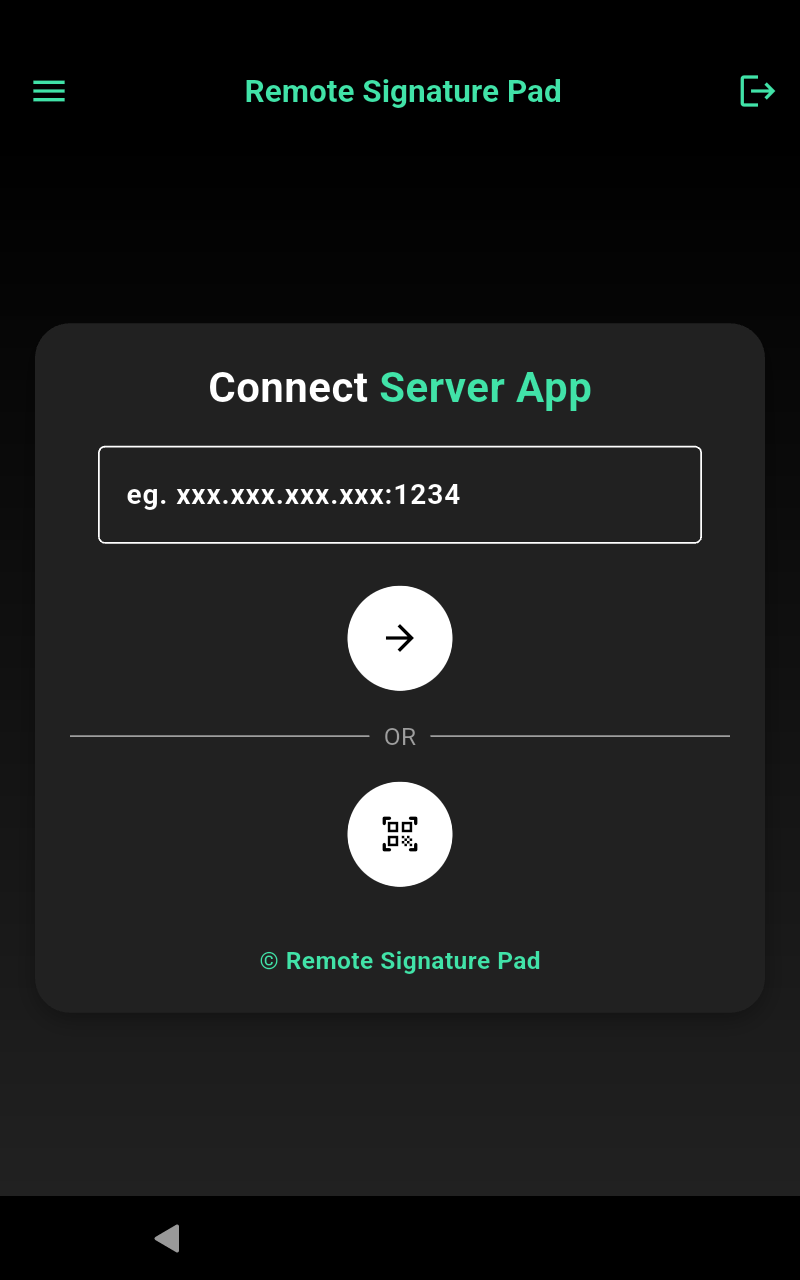
Don’t want to type the address by hand? On the computer, right-click the Remote Signature Pad tray icon, open Actions, and choose Generate QR Code. This shows a QR code encoding the computer’s address and port.
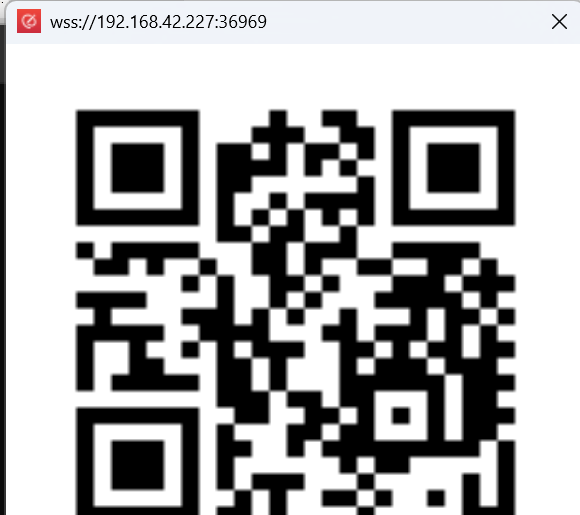
Back on the mobile device’s Manual Connect screen, tap the QR icon (next to the arrow button) and point the camera at the code — the address fills in and connects automatically, no typing needed.
No camera handy? The address and port are also printed as plain text at the top of the QR code window itself (for example wss://192.168.1.100:36969) — just read it off the screen and type it into Manual Connect instead of scanning.
USB Tether
Connect your mobile device to the computer with a USB cable — handy when Wi-Fi isn’t available or reliable. This button only appears once USB tethering is turned on; see USB Connection for the full setup.
Need the computer to reach the mobile device instead? See Reverse Connection.