
You can use an iPad as a signature pad for your computer. Remote Signature Pad runs on iPhone and iPad (iOS or iPadOS 15.5 or later) and draws what you sign on the iPad into the document on your Windows or Mac computer. The bigger screen gives you more room to sign.
What you need
- An iPad with the Remote Signature Pad app from the App Store.
- The free computer app for Windows 10 or later, or macOS, from the Downloads page.
- The iPad and the computer on the same Wi-Fi network.
Connect your iPad as a signature pad
- On the iPad, open the app and tap IP Network.
- Make sure Forward Connection is selected at the bottom.
- Make sure the computer app is running and its status says Listening.
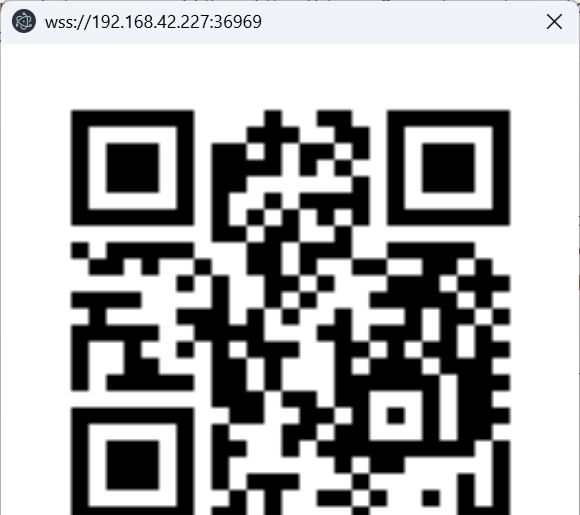
- Tap Auto Connect. If the computer is not found, use Manual Connect and scan the QR code from the computer app, or type the address.
- Open your document and sign on the iPad.
The Forward Connection guide shows each screen. If a firewall blocks the connection, try a Reverse Connection.
Which connections work on iPad?
iPhone and iPad connect over an IP network, using Forward or Reverse Connection. Bluetooth and USB connections are for Android only.
Set up the computer
On Windows, extract the zip, run the program as administrator and allow network access. On a Mac, open it with Control-click and allow Accessibility and Screen Recording. See the Windows guide and the Mac guide, or read how to sign on a Mac with an iPhone, which works the same way for an iPad.
Try the free version first
The Lite version allows one signing session per day. The full version has no daily limit. See Lite vs full. For a device that stays at the desk, there is also the Tablet Edition, an Android tablet with a stylus.
Leave a Reply