
Use these steps to connect your phone to your computer with the Remote Signature Pad mobile app.
Launch the Remote Signature Pad Mobile App from your mobile device icon.

It will open up to a welcome page below. You can opt for the follow actions:
- Select Forward Connection or Reverse Connection to connect.
- Select Auto Connect or Manual Connect now to the Server App.
Please ensure the server is running and in the correct connection mode. Please refer to the Server Guide for more information. - Select 3 bars Settings at the top left corner.
Please refer to the Settings Guide for more information - Click the ? button at the top right corner to access simple help.
- For android, please click the IP Network button before coming to the screen below:

For Forward Connection, if you choose Auto Connect, the App will try to discover the service and once the service is resolved correctly, it will redirect to the signature pad.
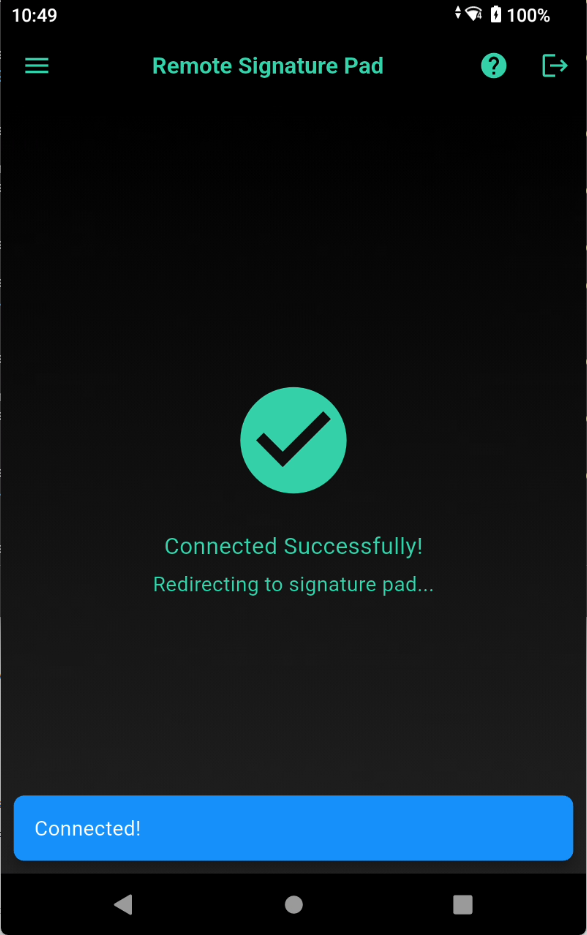
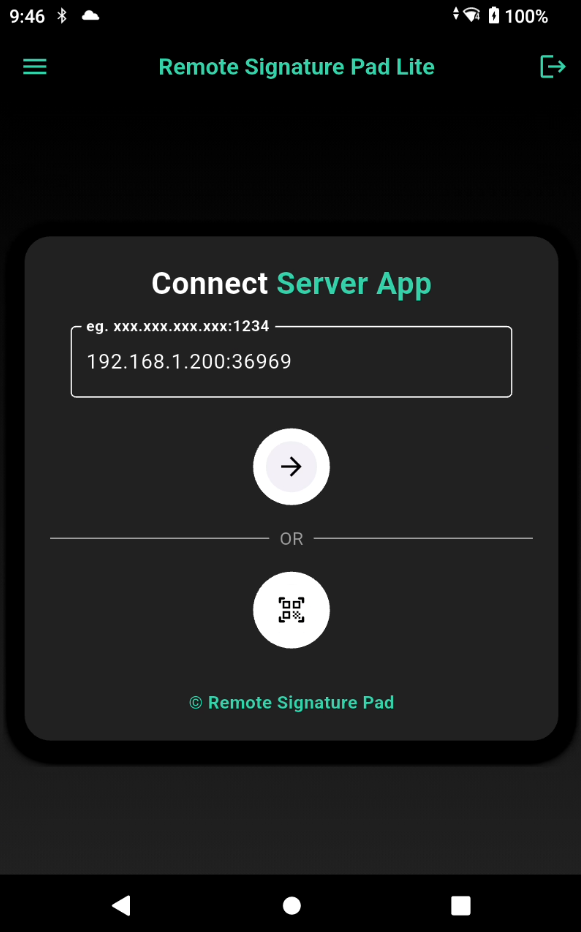
For Forward Connection, you can select Manual Connect where it will lead you the below screen where you can enter the server IP address or host name if your naming server allow. It should be entered in the following format for example:
<ip address>:<server network port>
192.168.1.200:36969
If the server network port is omitted, the App will retrieve from the network port specified in the settings.
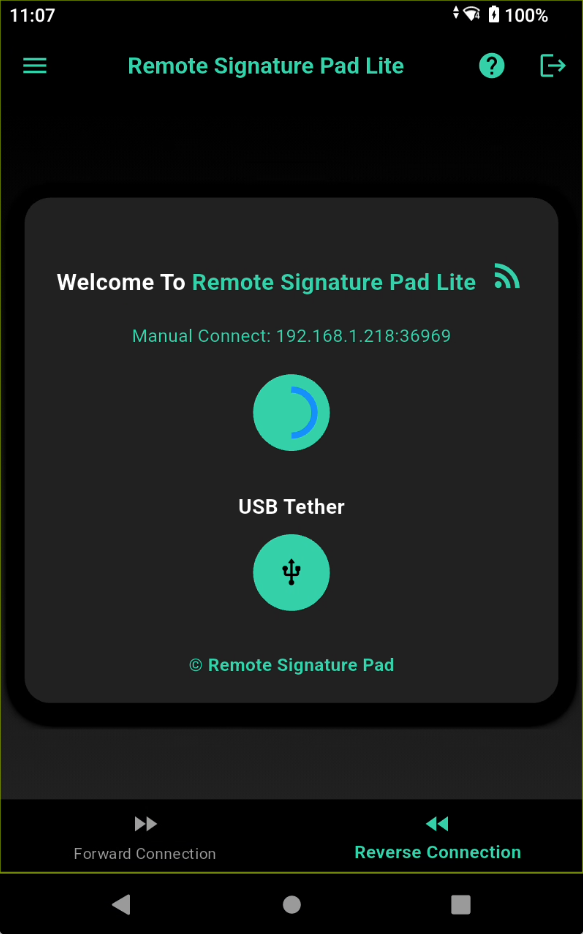
For Reverse Connection, it will wait for a connection from the server.
For more information, please refer to this link.