
Use Remote Signature Pad as an Android signature pad to sign into documents on your computer.
Launch the Remote Signature Pad Mobile App from your Android device icon.

It will open up to a welcome page below. You can opt for the follow actions:
Select Bluetooth or IP Network to connect.

For Bluetooth connection, it will navigate to the next screen where it will auto discover nearby bluetooth devices. There are 3 modes of bluetooth connections:
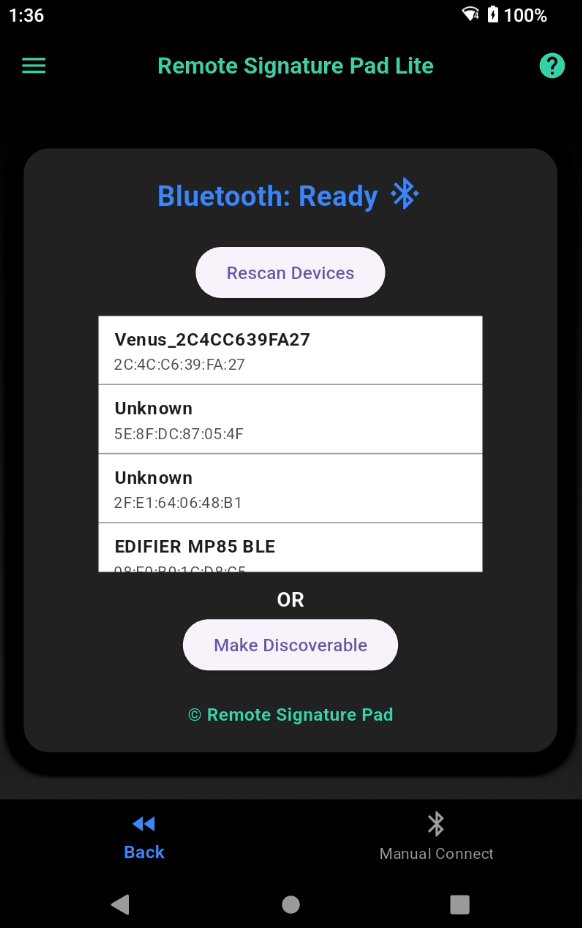
1. Scanning (Auto activated but can click Rescan Devices to scan again)
2. Discoverable (Click Make Discoverable button)
3. Manual (Click Manual Connect in the bottom navigation)
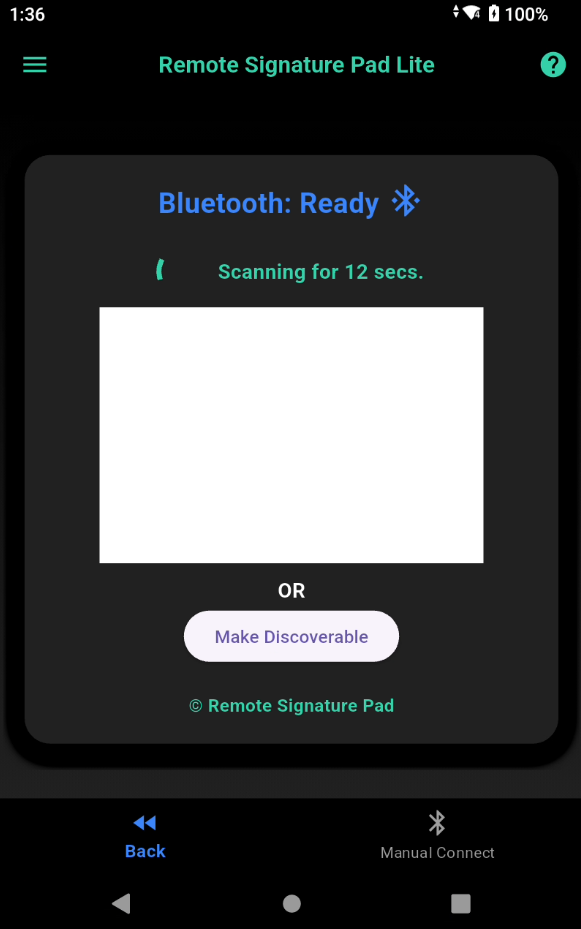
For Scanning, it will take 12 seconds to scan all the devices. Click Rescan Devices if your computer is not in range.
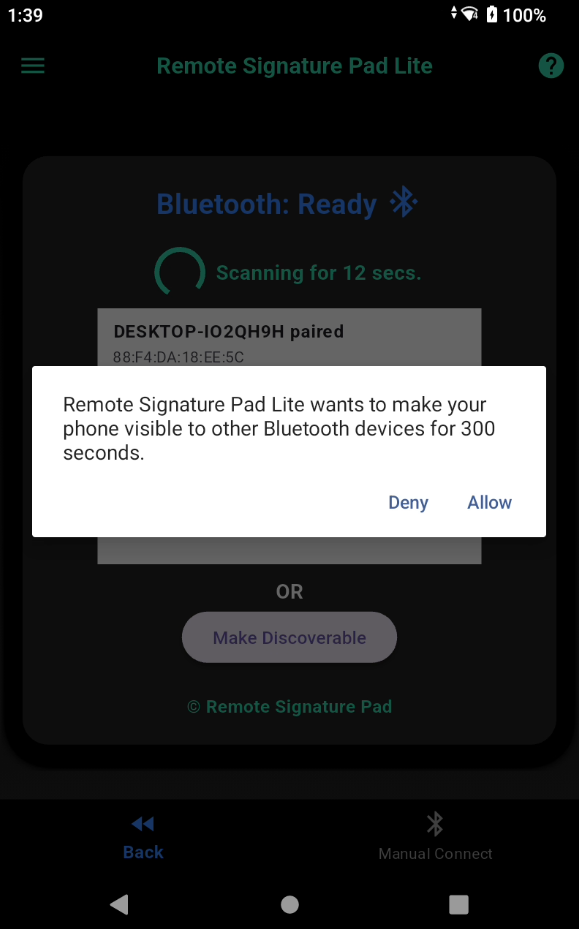
Discoverable mode will allow your device to be discovered by nearby bluetooth devices up to 300 seconds.
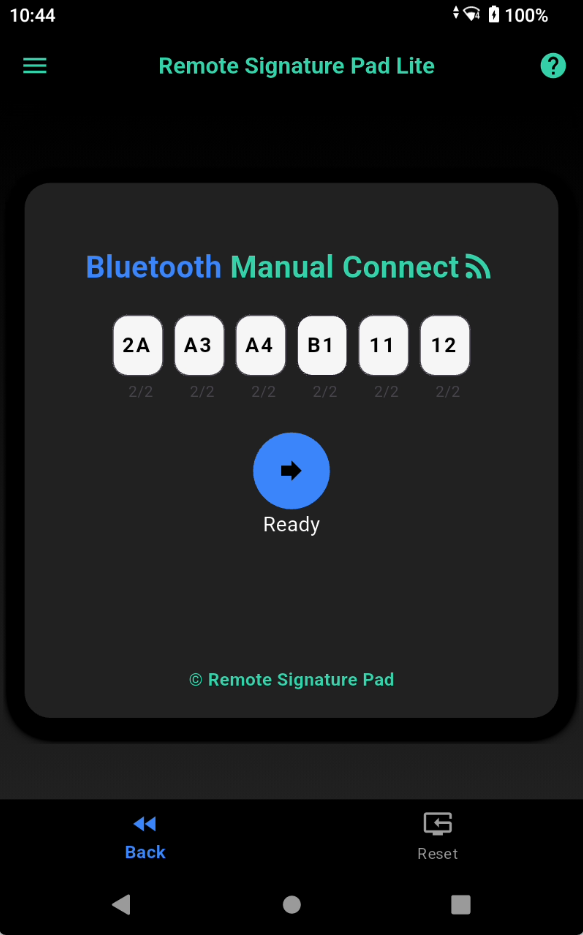
Manual Connect will cater to devices that do not broadcast their bluetooth presence.
Enter the mac address of the bluetooth and click the blue button.
Once the mobile device establishes a contact with the computer device, both devices will be prompted with a pairing box similar to below. Please click Pair and Yes to all.
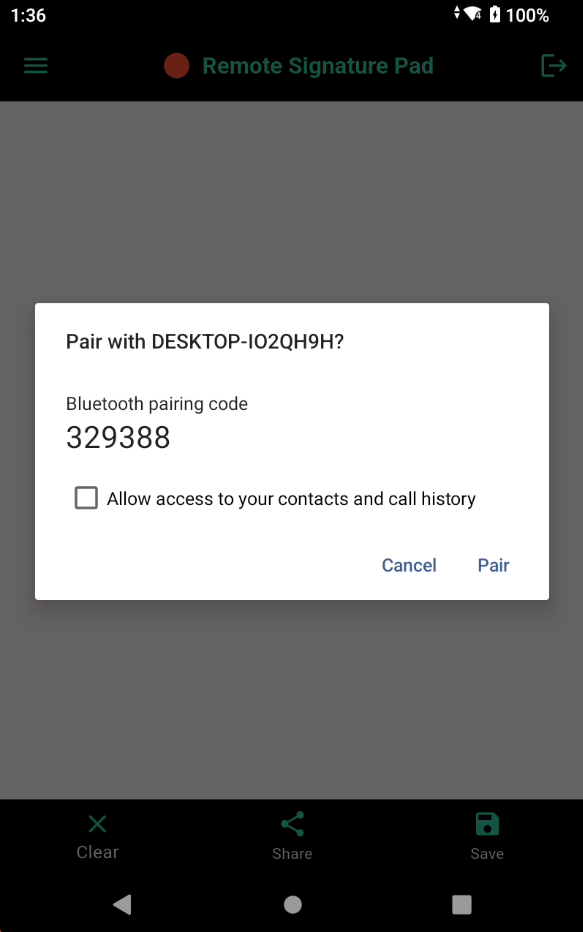
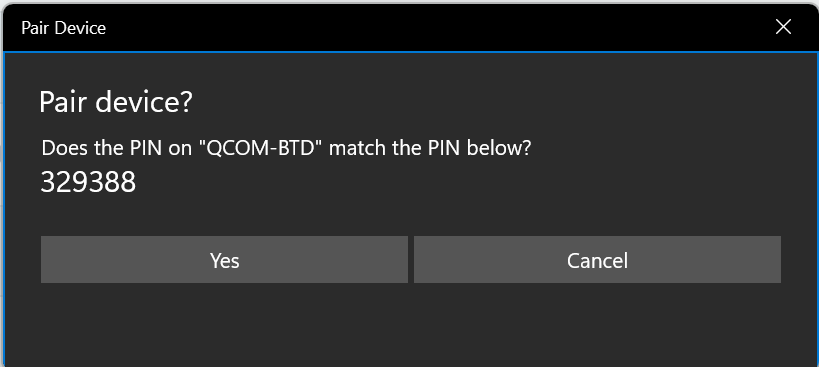
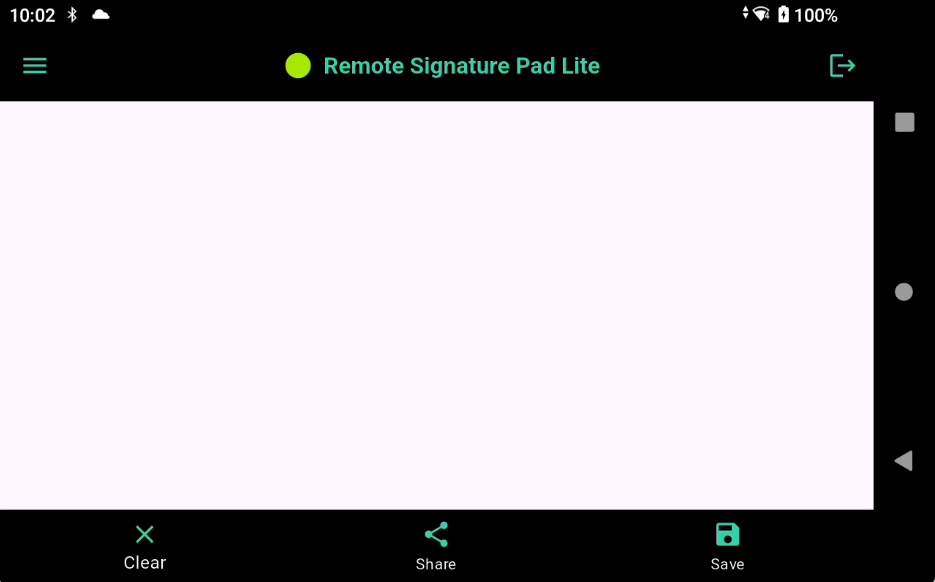
It will try to connect the signature pad to the bluetooth device. If it is successful, you will see a green icon like below.
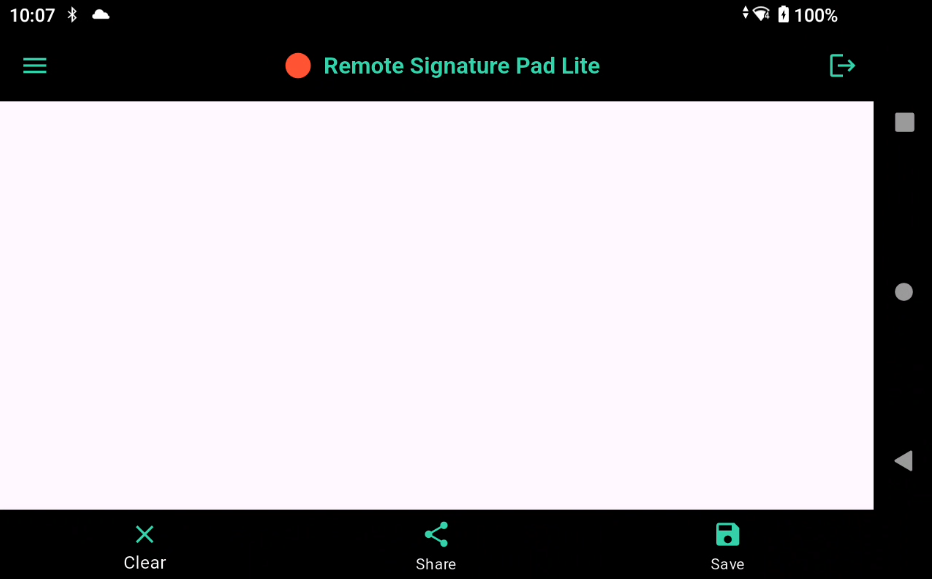
If the connection fails, you will see a red icon.
For more information, please refer to this link.