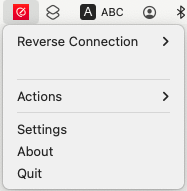
This guide shows how to use the Remote Signature Pad computer app as a signature pad on Mac.
Step 1: Download and Run
Download Remote Signature Pad Computer App from here.
Copy to a folder and run the file.

It will prompt the box for you to install into Applications.

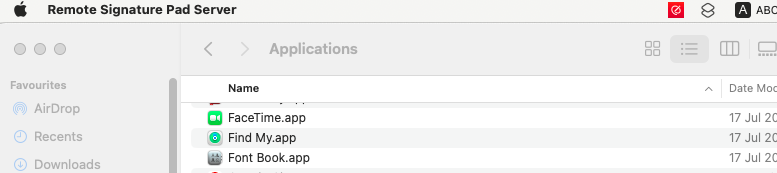
Once installed, you can access the Remote Signature Pad Computer app from the applications similar to below.

Mac users: the first time you open the app, hold the Control (Ctrl) key and click (or right-click) Remote Signature Pad Computer in your Applications folder, choose Open, then click Open again in the box that appears. You only need to do this once. If you double-click instead, macOS shows “cannot be opened because it is from an unidentified developer”.
When the app shows “Permission Needed”, click Fix Permission. The app restarts and System Preferences opens at Security & Privacy > Privacy, with Remote Signature Pad Computer already in the lists. Click the lock at the bottom left and enter your Mac password. Tick the app under Accessibility, then choose Screen Recording on the left and tick it there too. If macOS offers “Quit & Reopen”, accept it. You do not need to add or drag anything into the lists. Accessibility lets the app move the cursor to draw the signature; Screen Recording lets it recognise your saved signature window by its title. This appears the first time you run the app, and again after you install a newer version.
If you are running for the first time, you will be prompted with two dialog boxes below:
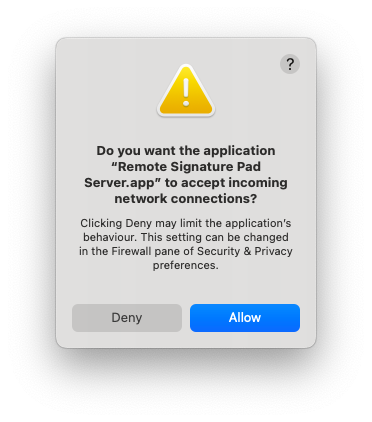
Please click Allow.
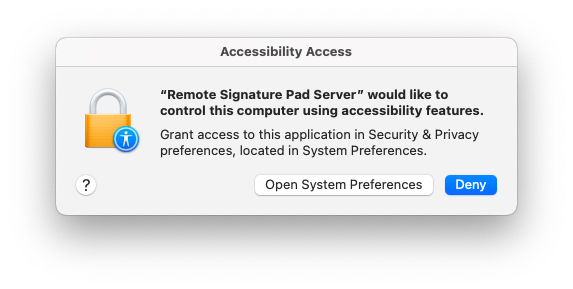
Please click Open System Preferences. In most cases, you will be prompted to enter password.
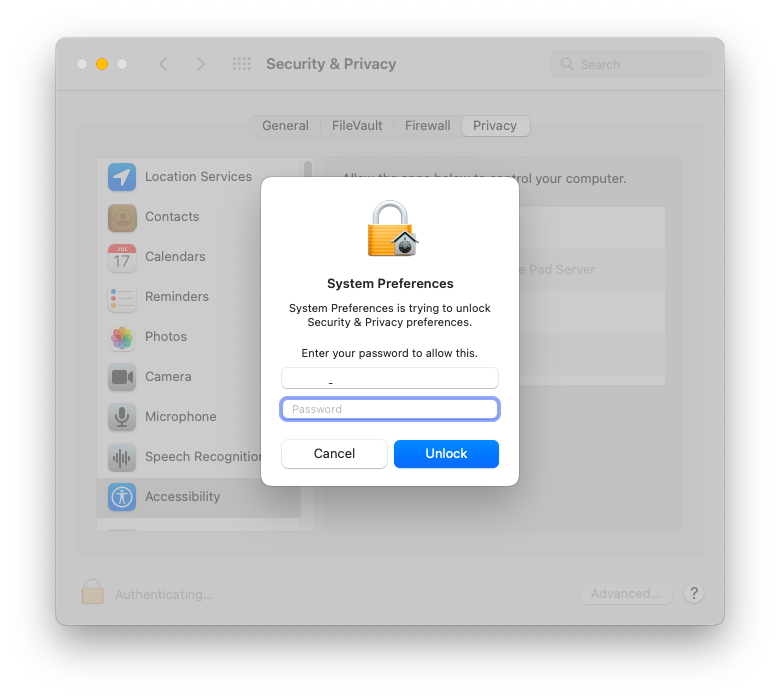
Check the box for accessibility permission for Remote Signature Pad Computer App like below.
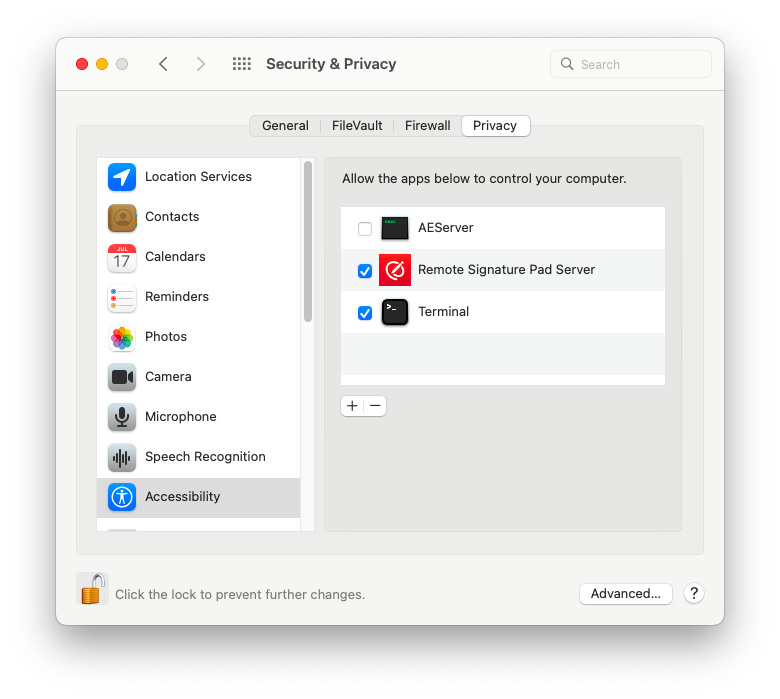
Lock it at bottom left corner.

Step 2: Open the Mac System Tray
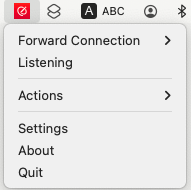
The Mac OS X equivalent of the system tray (also called the notification area) is the row of menulets at the upper-right corner of your screen
Step 3: Configure Settings if necessary
For settings, please go here for the guide.
Step 4: Ensure same connection mode with mobile app
or