
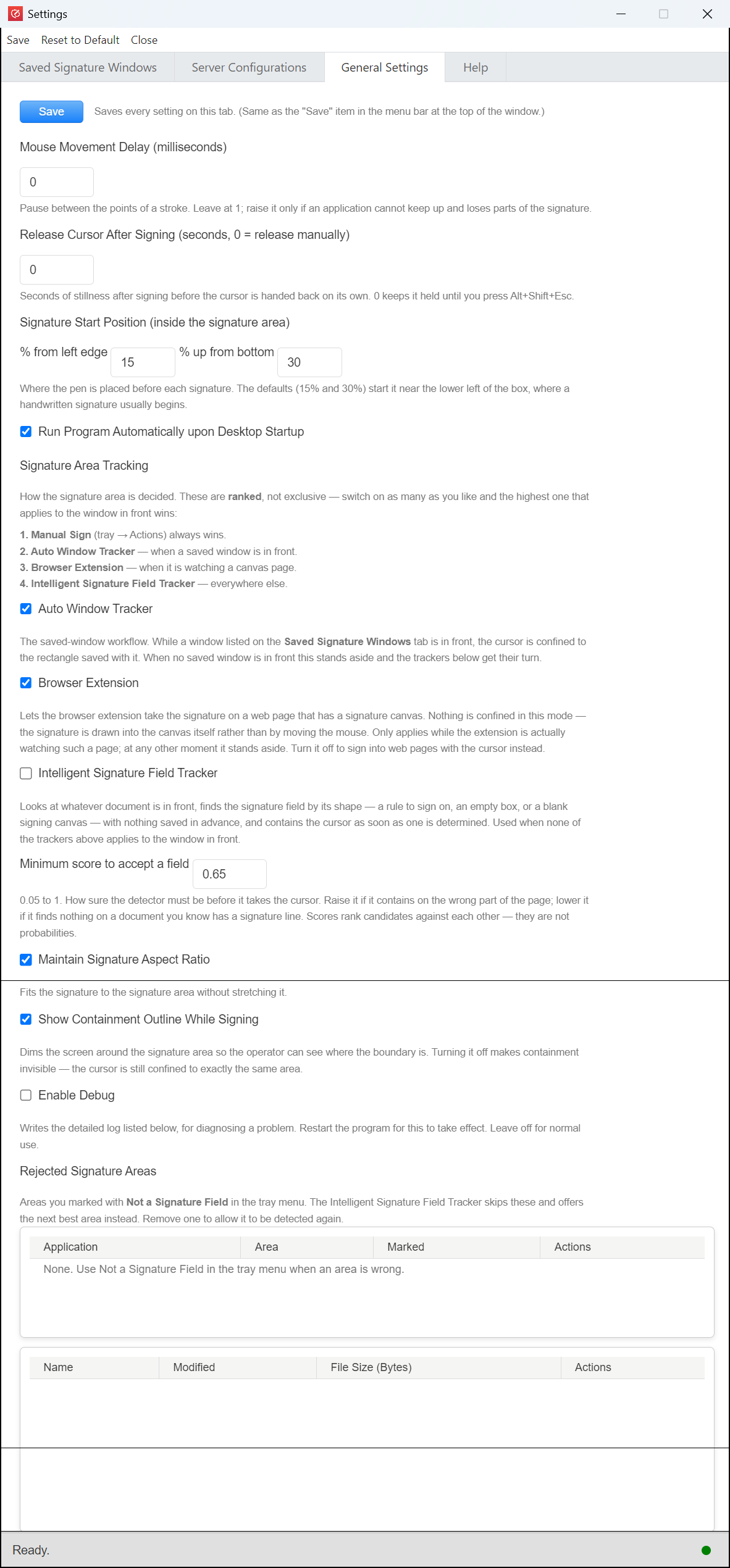
Mouse Movement Delay (milliseconds): the pause between the points of a signature stroke. Leave it at 1. Raise it only if a program cannot keep up and parts of the signature go missing.
Release Cursor After Signing (seconds): after a signature, the cursor is handed back to you once the pen has been still for this many seconds. 0 keeps the cursor held until you press Alt+Shift+Esc.
Signature Start Position: where the pen is placed inside the signature area before each signature, as % from the left edge and % up from the bottom. The defaults (15% and 30%) start near the lower left, where a handwritten signature usually begins.
Run Program Automatically upon Desktop Startup: starts the Computer App when you log in to Windows or macOS.
Signature Area Tracking
Before a signature can be drawn, the Computer App must know where it goes: the signature area. While a signature area is active, the cursor is held inside it (this is called containment), so the signature can never land outside the box. A dimmed outline around the area shows where it is.
There are three automatic trackers, plus Manual Sign. They are ranked, not exclusive: you can switch on as many as you like. About every 0.7 seconds the Computer App looks at the window in front and goes down the list from the top; the first one that applies to that window wins, and the ones below it do nothing for that window.
| Rank | Tracker | Applies when | Cursor held? |
|---|---|---|---|
| 1 (highest) | Manual Sign | You chose Actions → Manual Sign and dragged a box | Yes |
| 2 | Auto Window Tracker | A window from the Saved Signature Windows tab is in front | Yes |
| 3 | Browser Extension | The browser extension is watching a web page with a signature canvas | No |
| 4 (lowest) | Intelligent Signature Field Tracker | Any other window, when it finds a field scoring at least the minimum score | Yes |
If nothing applies (or all three trackers are off), no area is set and nothing is drawn: use Manual Sign.
1. Manual Sign (always first)
Manual Sign is not a checkbox: it is the tray item Actions → Manual Sign. When you use it, it releases whatever area was active, pauses all three trackers and uses the box you drag. The trackers take over again when Manual Sign ends (Alt+Shift+Esc, or automatically after Release Cursor After Signing).
2. Auto Window Tracker (on by default)
What it does: uses the signature areas you saved with Actions → Select Signature Window. When one of those windows is in front, its saved rectangle becomes the signature area and the cursor is held inside it, ready for the phone.
How it recognises a window: by the program and the window title saved on the Saved Signature Windows tab. The rectangle is stored as a proportion of the window, so it still fits when the window is moved or resized.
Why it ranks above the other two: a box you placed by hand is more reliable than anything found automatically. When no saved window is in front, it stands aside and the trackers below get their turn. So you can leave it on together with the Intelligent tracker: saved programs use your saved box, everything else is detected.
Best for: the same program and form signed every day, such as a point-of-sale or patient system.
3. Browser Extension (on by default)
What it does: lets the Remote Signature Pad browser extension put the signature straight into a signature canvas on a web page. The signature is drawn into the page itself, not by moving the mouse, so the cursor is not held and you can keep using your mouse.
Get the extension: in the Computer App, Settings > General Settings has a Get Browser Extension button (opens the Chrome Web Store) and a Manual Install (Download) button. Or follow the browser extension install guide.
When it applies: only while the extension is installed in the browser and is watching a page that contains a signature canvas (the extension checks in with the Computer App several times a second). It also needs Enable HTTP server ticked in Server Configurations (on by default), because that is how the extension talks to the Computer App. At any other moment it stands aside.
Why it ranks above the Intelligent tracker: the extension reads the page itself and knows exactly where the canvas is, which is more reliable than finding it from the screen image. It ranks below the Auto Window Tracker, so if you saved the browser window as a signature window, the saved box wins.
Turn it off if you want to sign into web pages with the cursor instead (for example with a saved window or the Intelligent tracker). If a signature goes to a web page when you meant to sign a document, close the page with the signature box or turn this off.
4. Intelligent Signature Field Tracker (off by default)
What it does: looks at the document in front and finds the signature field by its shape: a line to sign on, an empty box, or a blank signing canvas. Nothing needs to be saved in advance. As soon as a field is found, the cursor is held inside it.
When it applies: only for windows that none of the trackers above claims. It is the catch-all for documents and programs you have not set up.
Minimum score to accept a field (0.05 to 1, default 0.65): how sure the tracker must be before it takes the cursor. Raise it if it picks the wrong part of the page; lower it if it finds nothing on a document you know has a signature line. The scores rank candidates against each other and are not percentages, so adjust it using your own documents.
Correcting it:
- Wrong area: press Alt+Shift+D (Not a Signature Field). That area is never offered again for that program, and the next best one is offered.
- Several signature boxes on one form: press Alt+Shift+Arrow keys to move to the box in that direction.
- An area you have already signed scores lower than an empty one, so an unsigned box is normally offered first.
Which combination should I use?
- Same program every day: Auto Window Tracker on, and save the window once with Select Signature Window.
- Different documents every time: switch on the Intelligent Signature Field Tracker as well. Saved windows still use their saved box; everything else is detected.
- Signing on web pages: install the browser extension and keep Browser Extension on.
- Full manual control: switch all three off and use Actions → Manual Sign for each signature.
Getting the cursor back: press Alt+Shift+Esc at any time. Switching to another window also releases it, and it comes back when the signature window is in front again.
Maintain Signature Aspect Ratio: fits the signature into the signature area without stretching it. Turn it off to fill the whole area, which may stretch the signature.
Show Containment Outline While Signing: dims the screen around the signature area so the signer can see the boundary. Turn it off for an invisible containment; the cursor is still held in exactly the same area.
Enable Debug: writes a detailed log file, listed at the bottom of this tab, for troubleshooting. Restart the Computer App for it to take effect. To report a problem, turn it on, restart, repeat the problem, then download the log with the Actions button and send it to support@remotesignaturepad.com. Leave it off for normal use.
Rejected Signature Areas: the areas you marked with Not a Signature Field. The Intelligent Signature Field Tracker skips them. Remove an entry to allow that area to be detected again.