
This guide shows how to use the Remote Signature Pad computer app as a signature pad on Windows.
Step 1: Download and Run
Download Signature Pad Computer App from here.
Copy to a folder, unzip fully and run the file. No installation is needed.

Step 2: Open the Windows Tray
To open the system tray in Windows, you can click the upward-pointing arrow in the system tray. The system tray is usually located in the lower right corner of the toolbar.
Look for the Remote Signature Pad Computer App icon.

Step 3: Configure if necessary
For settings, please go here for the guide.
Step 4: Ensure same connection mode with mobile app
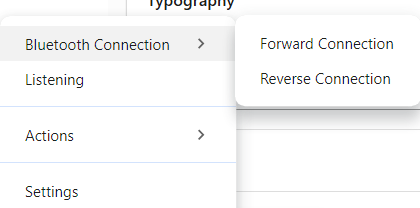
Step 5a: Optional Actions for Bluetooth Connection
You can enable mouse precision, select signature window and check for updates

Step 5b: Optional Actions for Forward or Reverse Connection
You can generate QR Code, select signature window and check for updates.
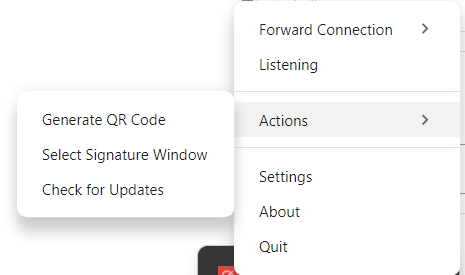
Step 6: Select Signature Window
Click Select Signature Window and a cursor plus sign will appear.
Click on the foreground signature window.
Confirm by clicking Save else click Cancel.
